 Read Aloud
The useful answer
For text already on your iPhone screen, try Apple Read & Speak first. For a saved library of PDFs, EPUBs, and articles, consider Read Aloud. NaturalReader is another option with web and mobile tools. Read Aloud is free to download, with premium voices and selected features requiring Plus.
What is a useful free Speechify alternative on iPhone?
The answer depends on what you want to replace. If you want your phone to speak a paragraph, start with the reading controls built into iOS. If you want to collect documents and return to them later, a dedicated reading app is a different kind of tool. Read Aloud is worth considering for that saved-library workflow; NaturalReader is another candidate when browser access matters.
“Free” needs a careful reading. A free download can include purchases, while a limited free plan may exclude the particular voice or import feature you wanted. This comparison separates those choices instead of treating every install button as a promise of unlimited use.
Disclosure and method: We make Read Aloud. This is a workflow comparison using our app's release information and the official product pages linked below, checked on 18 October 2026. It is not a claim that we conducted a timed, hands-on benchmark of every competitor.
Other product names identify the products being compared. Their mention does not imply endorsement of Read Aloud or this article by those companies.
Compare the options by the job you need done
Scroll sideways to see all columns.
| Option | Start here when… | Cost boundary to check |
|---|---|---|
| Apple Read & Speak | You want to hear text that is already onscreen | Built into iOS; no separate reading-app subscription |
| Read Aloud | You want your documents, books, and articles in a listening library | Free download; Plus covers premium voices and selected features |
| NaturalReader Personal | You want to evaluate a reader with web and mobile access | Basic features are free; several advanced tools need a subscription |
| Speechify | You already like its workflow and want to assess the free plan before switching | Free and Premium plans have different voice, speed, and feature access |
These are selection criteria, not a ranking of voice quality. A voice that suits a novel might be a poor match for a dense report. The best first test is a passage you actually want to hear, played at a comfortable pace on your own device.
Apple Read & Speak: start with text already in front of you
Apple documents Speak Selection and Speak Screen under Settings → Accessibility → Read & Speak. Enable the option you need, then select text and choose Speak, or use the two-finger downward gesture for Speak Screen. Older iOS releases may use the name Spoken Content. Apple's reading-controls guide explains the available settings.
This is a sensible first stop when the task is brief: a message you wrote, a paragraph on a webpage, or an explanation already open in a compatible app. You can decide whether listening helps before organizing a new library.
The practical limitation is the source in front of you. If the page exposes text poorly, changing the voice does not repair its reading order. A picture of a printed page also needs a recognition step. For a short selection that works cleanly, there may be no reason to install anything else.
Read Aloud: consider it for a collection you will revisit
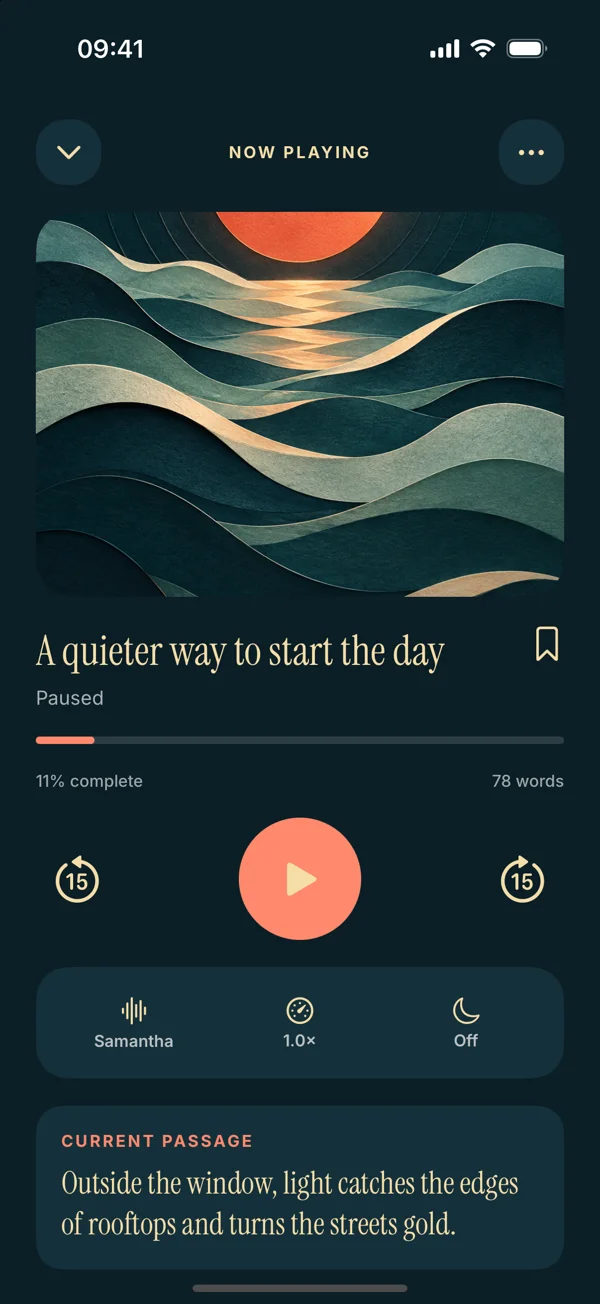
Read Aloud is the iPhone and iPad app linked on this website, with App Store ID 6742852983. It is separate from browser extensions and other apps with similar names. Its current listing describes PDF, EPUB, and Word imports, system and premium voices, adjustable pace, saved progress, bookmarks, and notes. Read the current App Store listing.
Its useful role in this comparison is bringing your own reading into one place. For example, you might have a course PDF, a DRM-free book, and a piece of writing you want to hear. Giving each item a clear title makes returning to the right material easier than searching a download folder every time.
Read Aloud is free to download. Premium voices and selected features require Read Aloud Plus; this page does not promise unlimited free access to every format or control. Check the access shown in your installed app before deciding whether its free experience covers your routine.
To try it, bring one document rather than a whole collection. Use the PDF listening guide, check that the text is in order, choose an available voice, and listen to a section you recognize. The point is to establish a useful reading session before investing time in organization.
NaturalReader: another option for web and mobile reading
NaturalReader's official feature guide distinguishes basic free functions from subscription features such as extended listening, MP3 conversion, OCR, and fuller text filtering. Its personal plans include web and mobile tools. See its feature overview and personal plan details.
That makes it a candidate if your reading regularly starts in a desktop browser and you want to evaluate that broader environment. If you only need one paragraph spoken on a phone, begin with the simpler test above before comparing subscription features you may never use.
Treat a desired audio download as its own requirement. Listening inside an app and saving an MP3 are different outcomes. Read Aloud does not offer an audio-export workflow in this comparison; if export is essential, inspect a product that explicitly documents it, including its limits and permitted use.
Check whether Speechify's existing free plan already fits
Switching is not automatically an improvement. Speechify currently advertises a free text-to-speech plan, with Premium adding more voice choices and capabilities such as Scan & Listen and AI tools. Its official pricing page separates those plans.
If your concern is a subscription prompt, identify the exact action that triggered it. Was it a particular voice, a speed setting, a scan, or another tool? Comparing that requirement is more useful than replacing an entire app because one optional feature costs money.
Likewise, if you depend on a feature outside ordinary document listening, include it in your decision. A lighter workflow may suit you, but it should still do the job that brought you to the app. Keep your original files available until you have proved the replacement works for them.
How to compare two readers with one real document
Use a short sample containing normal prose, a heading, a proper name, and a list. Avoid a deliberately easy demo sentence: it tells you little about how your actual reading will sound. For a PDF, choose a page near the middle as well as the beginning.
- Open or import the same source in each option.
- Confirm that the first and last sentences are present.
- Listen at similar, comfortable speeds rather than each app's maximum.
- Pause halfway through a paragraph and find your place again.
- Leave the document, reopen it, and check the return path.
- Record which features were available without an additional purchase.
A simple note is enough: “text complete; names understandable; easy to resume; wanted voice paid.” That creates a decision based on your document instead of a vague impression that one app feels more natural.
If a sentence disappears or a column jumps, check the source before blaming the voice. Our PDF reading-order explanation shows why a document can look correct while its extracted text follows a different sequence.
Match the alternative to your usual reading
For occasional snippets, an operating-system control may meet the whole need. For a weekly pile of saved articles and documents, try a library-based reader. For material that must move through a desktop browser or become a downloadable audio file, compare those requirements directly before paying.
A useful personal brief could be: “I have two PDFs a week, I listen on my iPhone, and I need to stop and return to an exact section.” That is more actionable than “I want the best AI voice app.” It narrows the comparison to import quality, comfortable speech, and returning to your place.
Do not treat a long feature list as a shopping list. If you never need voice cloning or a generated discussion, those features should not decide a basic PDF-reading purchase. Conversely, if one is essential, an app focused on reading your words may not replace the service you already use.
Moving your reading without starting over
Start with your original files and URLs. Do not assume another app can import Speechify's library, annotations, paid voices, or listening history. In Read Aloud, add the source document or paste text you are entitled to use, then create new bookmarks where needed.
Give the first few imports descriptive names. A title such as “October seminar — transport chapter” is easier to find than “download-19.” Keep a separate note of the old stopping point while testing whether the new reading position is useful. Move the rest only after the first item behaves as expected.
This measured approach also makes a failed test inexpensive. If a tool is unsuitable for one difficult report, you still have the original and can choose another route without rebuilding your whole collection.
Questions people ask before switching
Is Read Aloud a completely free Speechify replacement?
Read Aloud is free to download, with optional purchases. Premium voices and selected features require Plus. It is an alternative to evaluate for document listening, not a promise that every Speechify feature has a free equivalent.
Can an iPhone read text without installing another app?
Yes. Apple's built-in reading controls can speak exposed onscreen text. Start there for a quick passage; use a saved-library app when keeping and revisiting documents is part of the task.
Which option should I try first for a PDF?
Try the same text-based PDF in the option closest to your needs. Check its reading order and your ability to return to a section. If you want that document alongside other saved reading, try Read Aloud and follow the import guide.