 Read Aloud
The useful answer
Start with a PDF that contains selectable text. Import it into Read Aloud, open the document, check a short passage, then choose a voice and press play.
Start with the kind of PDF you have
A PDF can look like a page of text without containing text a speech reader can use. Before choosing a voice, open the document and try to select a sentence. If you can copy a meaningful passage, you have a promising source. If the whole page behaves like a picture, it may be a scan that needs optical character recognition, or OCR, first.
This small check saves time. Changing voices cannot make words appear in an image-only document. Equally, a selectable PDF can still have an awkward reading order: newspaper columns, sidebars, footnotes, and tables may be stored differently from the order in which you see them. Keep the original page available while checking the first import.
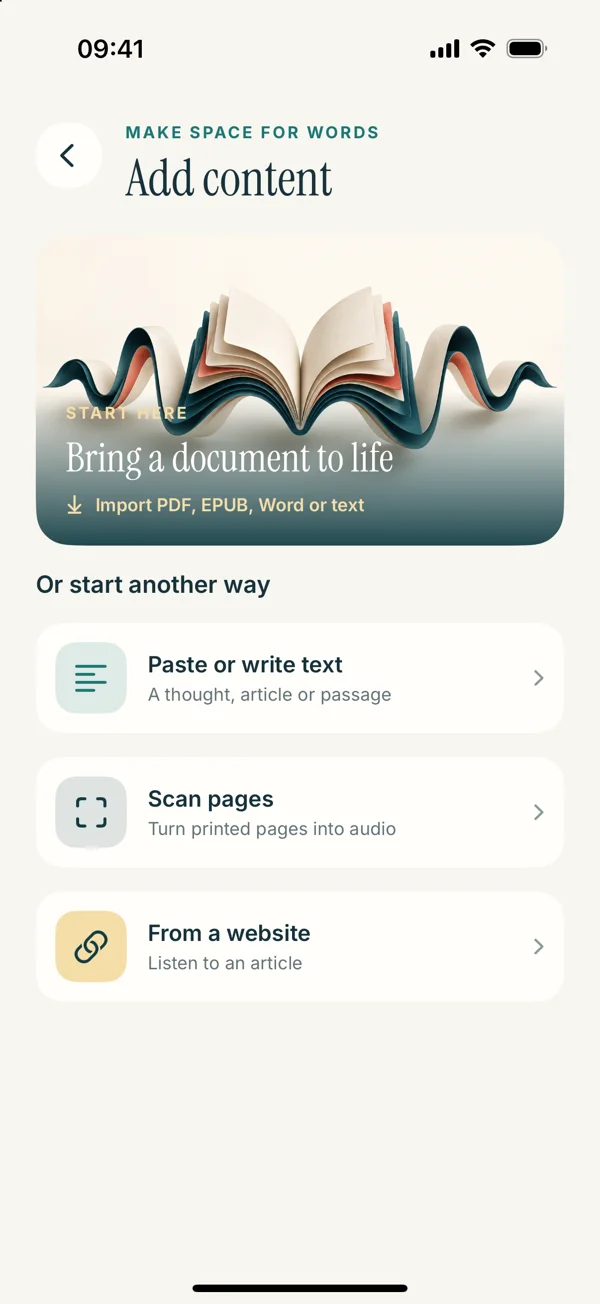
Read Aloud supports PDF listening in the current public app. The navigation described below previews the redesigned version 1.0.3. If your installed screens look different, follow the equivalent document import and playback controls, or check the App Store for the current release.
Import your PDF from Files
Save the document somewhere you can find it in the iPhone Files app. A useful filename includes the topic rather than only a download number: “Design lecture — chapter 2” is easier to identify later than “document-final-7.” If the file is stored by a cloud provider, make sure it is accessible before importing.
- Open Read Aloud and go to your library or Add content.
- Choose the document import option.
- Find the PDF in the native file picker and select it.
- Open the imported document from the library.
- Check the first page and a representative paragraph before starting a long session.
An imported document is reading material inside the app; this process does not promise an MP3 download or create a separate audiobook. The goal is to listen within Read Aloud while keeping the document available to inspect.
Choose a voice and a comfortable pace
Start with a short paragraph whose meaning you already understand. Play it with a system voice and a moderate speed. If names or specialist terms sound unusual, slow down before deciding the voice is unsuitable. A difficult sentence can be easier to follow simply because it has more space around its clauses.
Read Aloud also offers optional Plus voices. Their access is separate from the free app download. Check the current in-app purchase screen for plans and feature availability rather than assuming that every voice is included. Our voice selection guide explains how to compare choices using the same passage.
For dense documents, use the pace at which you can explain the paragraph afterward. A faster setting is useful only when the argument still makes sense. You can pause, revisit a section, or choose a slower pace for a page with unfamiliar ideas.
Check the reading order before you commit
Use three sample locations: the opening paragraph, a page with a heading or list, and a page that represents the document’s most complicated layout. Listen while looking at the original. Does a sentence finish before the next column starts? Are running headers interrupting every page? Does a table sound like a confusing string of numbers?
If only a small passage is awkward, copying that passage into a clean text document may be the quickest solution. Preserve the wording, add paragraph breaks where the argument changes, and remove repeated page furniture only from your listening copy. For a whole report with a broken order, ask the author for an accessible PDF or the original document.
Adobe explains why searchable text and document structure matter in its PDF accessibility overview. A speech app depends on the material it receives. Our article on PDFs that jump between columns shows a more detailed diagnostic process.
What to do with scanned pages
If you cannot select words, first look for a searchable copy from the original publisher or author. That often preserves the wording better than recognizing a low-quality scan. If you only have printed material or a photo, the upcoming Read Aloud release includes a scan workflow for recognizing text before listening.
Use that workflow for appropriate page images, and check the result carefully. Do not assume that every image-only PDF will automatically become a perfectly recognized document. Follow the scan-to-speech guide for clear photos and a review step. For the diagnosis itself, see why PDF text is not selectable.
Make a useful first listening session
Choose one section, not the entire report. Decide what you want from it: the main argument, the sequence of an explanation, or a first pass through a draft. Keep a way to note questions outside the listening flow. When the document refers to a figure, stop and look at it; the narration of the surrounding prose is not a description of the figure.
At the end, return to the source and check the parts you marked. A useful PDF listening routine combines speech with visual inspection. It does not require turning every table, diagram, and reference list into audio.
Your next step
Start with a short, text-based PDF you know well. Import it, test three places, and listen to one section at a comfortable speed. Once that works, bring in a longer document. Download Read Aloud to begin with the currently released app, and use this guide to preview the redesigned experience.