 Read Aloud
The useful answer
Use the iPhone’s built-in speech controls for a quick selection. Use Read Aloud when you want to save text, choose an in-app reading voice, and return to a listening library.
Choose between a quick listen and a saved reading session
Text to speech turns written words into spoken audio. It is useful when you have something to read already: an article, a draft, a paragraph, or a document. It does not transcribe your voice. If you want to speak and have the phone write down your words, you need dictation or speech-to-text instead.
For a one-off sentence, your iPhone may already have the right tool. For a reading list you want to organize and revisit, a dedicated app gives the material a home. Read Aloud is designed around that second job: bring in your words, choose how to hear them, and keep them available for another session.
The app walkthrough on this page previews version 1.0.3. The public download is currently version 1.0.2, so names and layouts may differ until the update arrives. Core text listening is already part of the public app.
Use iPhone’s built-in reading option
In current Apple documentation, speech settings are under Settings, Accessibility, then Read & Speak. Speak Selection reads selected text; Speak Screen can read onscreen content. Older iOS versions may use the name Spoken Content. See Apple’s iPhone speech instructions for the controls that match your device.
After enabling Speak Selection, select the passage and tap Speak. With Speak Screen enabled, swipe down with two fingers from the top of the screen to begin screen reading.
This is a useful baseline. Try it on a paragraph before deciding whether you need another app. It works particularly well for the question “Can I hear these words right now?” A saved listening library answers a different question: “Where can I keep the pieces I want to return to?”
Add your own text to Read Aloud
Start with a passage you are allowed to copy, or something you wrote yourself. A few paragraphs are enough for a first test. Avoid beginning with a huge document full of footnotes and tables; it is harder to tell whether an unfamiliar result comes from the voice or the source.
- Open Add content in the redesigned app.
- Choose Paste or write text.
- Paste a passage, or type your own words.
- Give the document a recognizable title and save it.
- Open the saved text and press play.
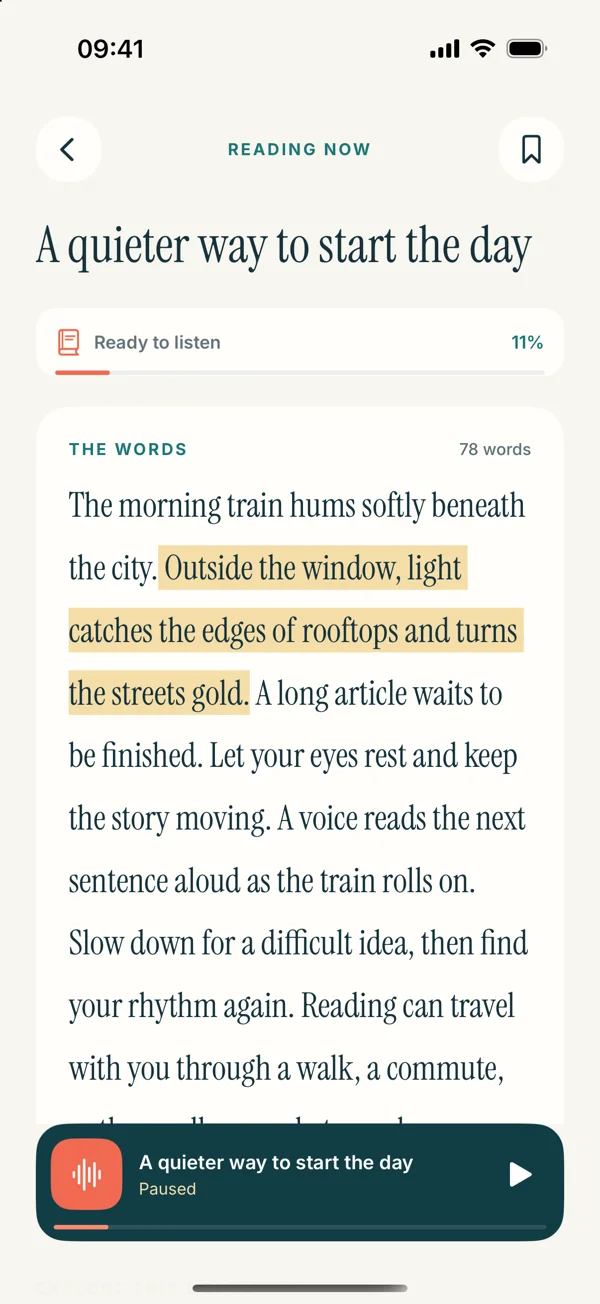
Read the first lines on screen as you listen. In the new text reader, the current sentence is brought into focus. This helps you keep a visual place, but it is not a claim that every word is highlighted in every document format. PDFs and EPUBs have their own reading paths.
Clean the passage before judging the voice
Text copied from a PDF or webpage sometimes contains broken lines, repeated menus, or fragments of captions. A speech engine may pronounce those fragments exactly as they appear. If you hear a strange pause after each line, check whether the source has a hard line break in the middle of each sentence.
Make a separate listening copy when editing the source would be inappropriate. Keep real paragraph boundaries, punctuation, and headings. Remove an accidental line break only when the words on both sides belong to the same sentence. For detailed examples, use our guide to cleaning pasted text.
Good source preparation is particularly valuable for your own writing. The listening version should preserve what you meant to say, not silently rewrite it into a more polished argument before you have heard the original draft.
Set a voice and pace for the material
Voice preference is personal, so compare a short sample instead of relying on a label such as “natural.” Use the same paragraph for each voice. Include a long sentence, a name, and some punctuation if those appear often in your documents. Change one setting at a time so you can tell what helped.
Read Aloud includes system voice choices and optional paid Plus voices. A free download does not mean every premium option is unlocked. The voice guide explains the distinction and a simple comparison method.
Begin with a pace that feels easy. If you keep mentally catching up to the previous sentence, slow it down. If you can follow the logic and want a brisker review, increase the pace a little. There is no universal best speed for every topic and every listener.
Keep listening purposeful
Before starting, name a small outcome: understand the opening argument, hear whether a draft sounds abrupt, or get through one saved article. That intention makes it easier to notice when listening stops being useful. When an idea becomes dense, pause rather than letting the next paragraph cover it up.
For proofreading, keep the original editable document nearby. Note awkward passages, then correct them there. For learning, stop after a section and describe the idea in your own words. These are ways to structure a session, not promises that audio automatically improves memory or comprehension.
Use the right import for a longer source
Pasting is a good starting point, but you do not need to manually copy every file. Read Aloud also handles PDF listening and webpage imports. The upcoming release adds the redesigned workflows described across this guide collection, including EPUBs and scan-to-text input.
Choose the route that preserves the material most clearly. If the article imports with extra navigation, a cleaned text copy may be better. If a PDF has meaningful page layout, keep the original available even when listening to its words.
Begin with one paragraph
The quickest useful trial is your own paragraph, a system voice, and a comfortable pace. Save it, listen, and decide whether you want to keep reading this way. Get Read Aloud for iPhone and iPad and build from a small session that works for you.