 Read Aloud
The useful answer
Use Google Reading mode for supported long articles you are already viewing on an Android phone. Use Read Aloud when you want to import PDFs, EPUBs, text or web articles into a personal listening library. Reading mode does not support PDFs, email, chats or social feeds; Read Aloud also cannot bypass a website's login or paywall.
Try your own document. Free download; optional in-app purchases.
Android offers several ways to hear written content, and their similar names can make a simple task confusing. A feature for the page in front of you is different from an app where you collect documents. Choosing the right starting point saves you from trying to make one tool do the other's job.
Google Reading mode is useful to consider when you want to listen to an article you have already opened. Read Aloud is a separate app for bringing material into a library and returning to it. This comparison explains when each approach makes sense and how to test it with a real reading task.
Disclosure: We make Read Aloud. This guide reflects our Android implementation and Google's official documentation, checked on 18 October 2026. Recommendations below are based on the described workflow, not a measured competition between the products.
Other product names identify the products being compared. Their mention does not imply endorsement of Read Aloud or this article by those companies.
Start with the source, not the app name
Scroll sideways to see all columns.
| What you have | A useful starting point | What you are trying to establish |
|---|---|---|
| A long article already on screen | Google Reading mode | Can the current page be read comfortably? |
| A downloaded PDF | Read Aloud's file import | Does the text extract in the correct order? |
| A DRM-free EPUB | Read Aloud's library | Can you return to the chapter you need? |
| Your own draft or meeting notes | Read Aloud's New text option | Does hearing the wording reveal anything to revise? |
| A public article you want to revisit | Read Aloud's website import | Does the saved copy include the complete article? |
The important difference is the task's lifespan. A one-off reading session may not need a saved document. Something you will revisit next week benefits from a recognizable title, a place in a library and a way to find your position again.
You can use both approaches. Keeping a document reader installed does not mean every webpage has to be imported, and using a page-reading feature does not solve every file-based task. Let the source decide which route you try first.
What Google Reading mode covers
Google describes Reading mode as an Android-phone tool for supported long articles, with spoken playback and adjustable presentation. Its documented requirements include Android 9 or later. Setup uses the Reading mode app and an accessibility shortcut.
For a compatible page, that gives you a route from looking at an article to hearing it. It is a sensible option when you want help with the current text and do not need to organize a collection of source files.
If a page fails, first identify what it actually contains. A browser can display a downloaded file, an embedded viewer, a discussion thread or an article. The fact that all four appear inside a browser does not make them the same kind of reading source. An unsupported source calls for a different route rather than repeated changes to the voice settings.
What Read Aloud adds for a document routine
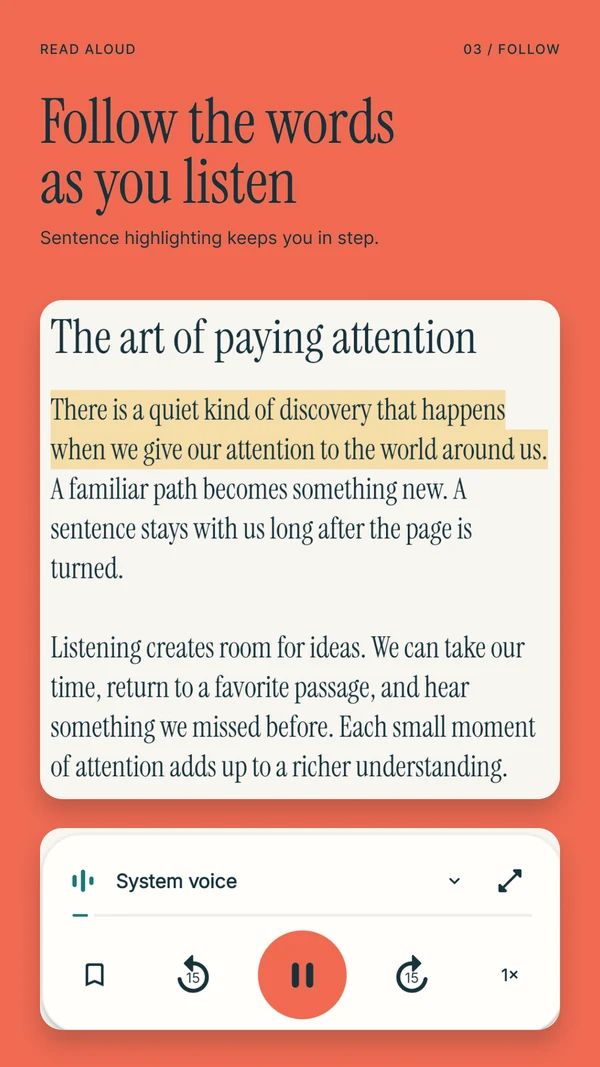
Read Aloud for Android imports supported files into app-private storage and offers a library, saved position, sentence highlighting, notes and saved passages. The Google Play listing covers PDF, EPUB, DOCX, RTF, PPTX/PPSX presentations, text and image imports, alongside website import and camera capture.
This is useful when the task continues after the current browser session. Consider a training PDF you want to hear in several short sessions. You can import it once, identify it in Library, and return to the same material instead of finding the download again each time.
The saved copy also makes source checking important. Look at the extracted opening and at least one later section. A library gives you a convenient place to keep a document; it does not prove that the extraction has preserved every meaningful part of the original layout.
The app is free to download. Device voices provide a starting point, while premium voices require Read Aloud Plus. Google Play subscriptions and iOS subscriptions are separate, and the Android library does not automatically synchronize with an iPhone library.
How to try Reading mode on a suitable page
Install Google's Reading mode app, complete its setup, and enable the shortcut as directed. Open a long article, activate that shortcut, then use Play. Google documents these steps in its Reading mode help page.
Keep the test simple: use a public, mostly textual article rather than a sign-in screen or a page crowded with interactive components. If the tool recognizes the article, listen to a paragraph you can see. Confirm that the spoken text is the section you intended to hear.
Next, adjust the presentation for comfort. Your goal is to find a workable combination of text visibility and listening pace. There is no benefit in matching another person's preferred settings if they make the article harder for you to follow.
If the page is not recognized, try a different straightforward article to distinguish a source problem from a setup problem. That is more informative than repeatedly reopening the same difficult page. For exact setup and troubleshooting changes, use Google's current help rather than an outdated screenshot from a different Android version.
How to bring the same task into Read Aloud
For a web article, copy its address and open Read Aloud's Add content screen. Choose From a website, enter the address and use Import website. Website import needs an internet connection and contacts the site you enter.
For a document you already downloaded, choose Import a file instead. Android's file picker lets you select the source. A cloud file provider may need to fetch the file first, so finish that step before leaving your connection.
For a small passage you are allowed to copy, choose New text, add a clear title, paste the words and select Save to library. This is a practical fallback when you need only a section, provided you keep enough context to understand it later.
After import, read a few lines before listening. Press Play with a device voice, set a comfortable speed, and use the visible text to check that the speech follows the expected passage. Save a useful point or note if the task will continue later. Reopen the item from Library to test the return journey as well as the first listen.
Why a PDF needs its own check
A PDF preserves a page layout, which may contain several columns, footnotes or text embedded in images. Listening requires a sequence of words. The relationship between the visual layout and that sequence is where many disappointing results begin.
A two-column paper might sound fluent while alternating between unrelated paragraphs. A scanned handout might contain a recognized number that differs from the printed one. A chart might contribute isolated labels without the relationships that make it meaningful.
Before a long listening session, inspect one representative page. Compare the extracted text against the original. If you spot a problem, try a cleaner source or a short, clearly labeled excerpt. A different voice can change delivery, but it cannot reliably repair source order that has already been lost.
For papers and course readings, use our Android research-paper guide to build a routine around suitable prose sections and visual checks. Audio can complement close reading without replacing every part of it.
Which should you use for a saved-article backlog?
Think about how you want to find the article tomorrow. If you expect to keep it in a browser tab and hear it once, test a page-reading option. If you want several pieces alongside your documents and personal notes, try importing them into Read Aloud.
Begin with two articles, not your entire backlog. Give each a recognizable title if you create it as pasted text. Open both from the library and check the ending as well as the opening. This catches imports that look plausible but contain only a preview or miss a later section.
Keep the original links in your usual reference system when you need a durable source trail. A saved reading copy may not reflect later corrections to the website. For anything where wording or publication date matters, return to the original page before quoting or relying on a specific claim.
Our article-listening guide for Android also covers Chrome's separate listening feature and explains when to use direct narration rather than a generated recap.
What about privacy and offline use?
Read Aloud stores saved documents and reading history on the device. That does not mean every feature operates locally. Premium speech sends selected text for generation, website import fetches the entered address, and translation requires online processing, as described in its Android listing.
For offline listening, prepare a saved document and an installed local system voice, then test the combination with networking disabled. Do not assume that a voice labeled as a network voice will work without a connection. The safest practical check is the exact document and voice you plan to use.
For work material, follow your organization's rules before importing or using online tools. This is about choosing an appropriate workflow for the document, not treating every reading task as confidential by default.
Questions about choosing an Android reader
Is Reading mode the same as Chrome's Listen to this page?
They are separate features with their own setup and availability. Follow the instructions for the feature you are actually using. Our Android web-article walkthrough explains Chrome's option and the Read Aloud import route.
Will Read Aloud unlock a paywalled article?
No. Importing an address does not carry over every browser login or grant access to restricted material. Use an authorized download or a permitted excerpt if available. Do not treat import as a way to bypass access controls.
Should I install a reader just to hear one paragraph?
Probably start with the reading feature already appropriate to the page. A dedicated library becomes more valuable when you want to save, organize and revisit material. The right amount of setup depends on whether this is a one-off task or a recurring routine.
What should I try first for a document collection?
Install Read Aloud from Google Play, import one representative file and try returning to it later. Check the text, voice and saved position before moving your larger reading list into the app.