 Read Aloud
The useful answer
For a free Speechify alternative on Android, try Google Reading mode for supported long web articles, or Read Aloud for a saved library of PDFs, EPUBs and your own text using device voices. NaturalReader also offers basic free features. Premium voices and advanced tools can require payment; choose using one real document before subscribing.
Try your own document. Free download; optional in-app purchases.
You want your phone to read something to you. Perhaps it is a PDF for tomorrow, an EPUB you have been meaning to finish, or an article that has sat in a tab for a week. You do not necessarily need another subscription to find out whether listening will help.
The useful question is narrower than “Which app is best?” Ask which Android reader can handle your actual source, with a voice you are comfortable hearing, under a free tier you understand. This guide compares three starting points and gives you a short test to choose between them.
Disclosure: We make Read Aloud. This is a developer-written comparison of documented capabilities, not an independent voice-quality benchmark. Official sources were checked on 18 October 2026. Store availability, plans and features can change.
Other product names identify the products being compared. Their mention does not imply endorsement of Read Aloud or this article by those companies.
Which free option fits your reading task?
Scroll sideways to see all columns.
| Your main task | Option to try | What to check before committing |
|---|---|---|
| Hear a long article already open on your phone | Google Reading mode | Whether that page is supported |
| Keep PDFs, EPUBs and pasted text together | Read Aloud for Android | Extracted text and the device voice on your phone |
| Explore a reader that also has a web experience | NaturalReader | Which features and voices your free access includes |
| Keep a workflow you already like in Speechify | Speechify's free plan | Whether its current free limits cover your routine |
These are starting points, not a ranking. A person who listens to one web article each weekend has a different problem from a student returning to six PDFs across a semester. Give the source and the routine more weight than the length of a feature list.
What does “free” mean in a text-to-speech app?
A free installation, free device speech and a free premium-voice trial are three different things. Installing without an upfront payment does not establish that every voice, download or AI tool is included indefinitely.
Before comparing alternatives, identify what prompted the search. Was a preferred voice locked, did a document import badly, or did the subscription cover tools you do not use? Those problems call for different tests. A different voice will not fix scrambled PDF text. A more elaborate document library may add little if you only need to hear a paragraph once.
Speechify itself has a free plan. Its official pricing page lists basic text-to-speech access separately from Premium, which adds natural voices and other tools. Check the Android purchase screen for the offer available to you; a web price should not be treated as a guaranteed Google Play price.
For each candidate, try your preferred voice without accepting a paid plan. Note any time, character or feature limit displayed. If a trial is offered, read its renewal terms before starting it. You are testing whether the available experience meets a need, not whether you can finish onboarding quickly.
Read Aloud: for a personal Android listening library
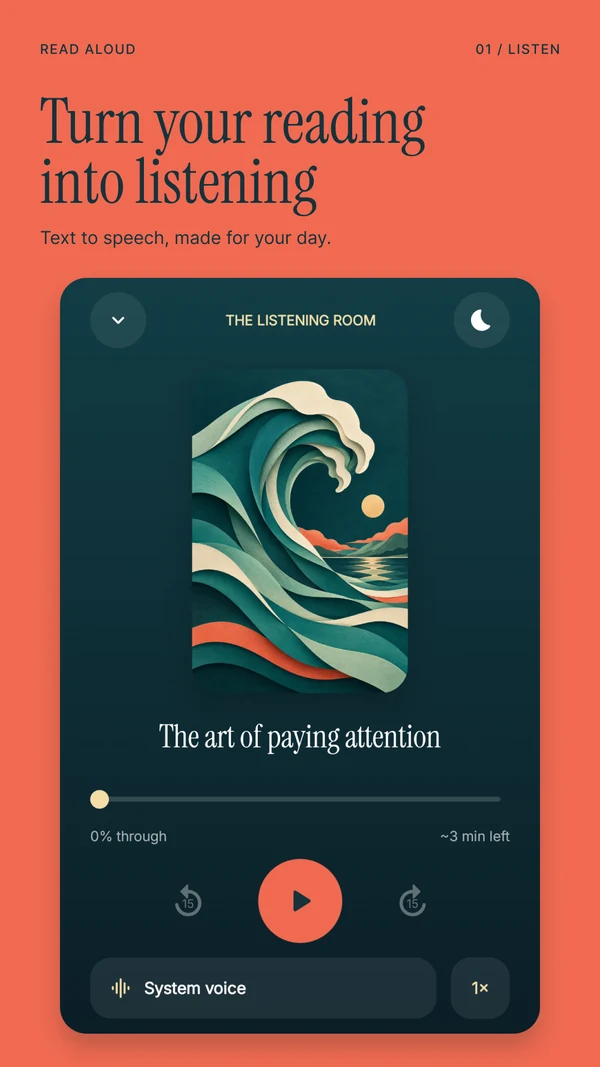
Read Aloud is worth trying when the problem is a growing pile of material: a PDF, an EPUB, a saved web article and a few notes. The Android app keeps imported documents and your reading position together, with sentence highlighting, saved passages and playback-speed controls.
Start with the phone's device voices. Read Aloud Plus adds premium voices through a Google Play subscription. The Read Aloud Google Play listing distinguishes device listening from paid premium speech and describes the supported imports. It also explains that Android and iOS subscriptions are separate.
For a first test, choose a short document you already understand. Open Add content, choose Import a file, and select it in Android's file picker. Read the opening paragraph on screen before pressing Play. If the words are in order, listen for a minute and adjust the speed. Reopen the item from Library later to see whether this way of returning to material suits you.
The app's advantage for this task is the reusable document collection. It will be less relevant if you need a shared desktop workspace or a commercial voiceover production service. A listening library on your phone is not a promise of automatic synchronization with your computer or iPad.
Google Reading mode: for an article in front of you
Google Reading mode offers a useful free starting point for supported long articles on Android phones. Google explicitly excludes PDFs, email, chats and social feeds. That boundary makes it a different choice from a file-importing reader.
Try it when you are already looking at an article and want to hear that page. If it solves the immediate problem, you may not need to build a library at all. If the source is a downloaded paper, choose a PDF-capable route instead of repeatedly troubleshooting the same unsupported format.
Our Reading mode versus Read Aloud comparison explains how to choose between reading the current page and saving documents for later listening. Both approaches can belong on the same phone; you do not need to choose one tool for every situation.
NaturalReader: another option to evaluate
NaturalReader's Android listing describes document reading, camera scanning and access to its broader web and mobile product. That makes it a relevant candidate if your reading starts on a computer and continues on Android.
Its official feature guide separates basic free features from subscription features including extended listening, MP3 conversion and OCR. A feature appearing in the store description does not mean it is part of free access.
Use the same sample file you used elsewhere and check the actual access available in the app. If an exportable audio file matters more than a local document shelf, investigate that requirement first. We cover that distinction in NaturalReader versus Read Aloud on Android.
Does Android's voice choice change the result?
Yes. A device voice is tied to the speech engine and voice data available on your phone. Two Android phones may therefore offer different choices even inside the same reading app. Avoid assuming a voice you heard on someone else's device will be available on yours.
Google's text-to-speech settings guide explains how to choose an engine, language, rate and pitch, and install voice data. Settings labels can vary by manufacturer. Search your phone's Settings for “text-to-speech” if the documented path looks different.
Test a paragraph containing names, numbers and punctuation, not just a friendly greeting. Choose a speed at which you can explain the paragraph afterward. Increasing the rate is useful only while the words remain easy enough to follow for your purpose.
A ten-minute comparison you can repeat
Use a public article or a document you are comfortable processing in the apps you try. Keep the text identical so that the comparison is about the workflow rather than the material.
- Name the job. Write “hear one article,” “study a PDF” or “return to saved documents.” Pick one primary task.
- Check the source. Confirm the opening, a middle paragraph and the ending appear in the correct order after import.
- Choose a free voice. Listen for one minute without enabling a paid trial just to reach a preferred sample.
- Try a pause and return. Stop, open another app, then come back. Notice how easy it is to find your place.
- Record one friction point. For example, repeated headings, unclear numbers or difficulty locating a saved item.
- Repeat with one alternative. Stop when a tool meets the task. You do not need to install every reader in the store.
For an offline routine, add a separate test: prepare the document and voice while connected, then try that same item with networking off. A saved document alone does not establish that the selected voice is available offline. Run this test before relying on it for a trip.
When paying might solve the right problem
A subscription can make sense if the specific feature you value is paid and you have already confirmed the underlying workflow. For example, a preferred premium voice may make a long document more pleasant for you to hear. That is a personal preference to evaluate with your own text.
Payment is a poor first response to a broken import. If a two-column PDF mixes paragraphs, inspect or replace the extracted text before judging the narration. Likewise, no reader can turn a chart into a complete verbal explanation simply by speaking its axis labels. Return to the original visual when the argument depends on it.
Compare the price against a routine you actually expect to repeat. “I will listen to three assigned chapters each week” is more useful than “I might become a faster reader.” There is no need to assume a productivity improvement to decide whether a tool feels worthwhile.
Questions about free Speechify alternatives on Android
Is Read Aloud completely free?
It is free to download and supports listening with device voices. Premium voices require Read Aloud Plus. Check the Android purchase screen for current prices and included features. An iOS subscription does not unlock the Android subscription.
Which option should I try for a PDF?
Start with a document reader such as Read Aloud or NaturalReader, and check its access terms. For a practical walkthrough, use our guide to reading research PDFs aloud on Android. Text extraction quality matters as much as the voice.
Can I use these apps to publish an audiobook?
Personal listening and permission to distribute generated narration are separate questions. Check the source material's rights and the chosen service's terms for your intended use. This guide evaluates personal reading workflows and does not establish commercial audio rights.
What is the simplest first step?
Get Read Aloud for Android, import one readable document, and listen with a device voice. If your main task is a web article, also try the page-reading option above. Choose the experience that makes that real task easier to finish.