 Read Aloud
The useful answer
If a PDF page is an image, a text-to-speech app has no words to read until text recognition adds them. Check the file in another viewer, look for a searchable source, and verify any OCR result before listening.
The page looks fine. Why can’t the reader find words?
Imagine opening a twenty-page handout on your phone. Every paragraph is visible, the letters look sharp, and you can zoom in without difficulty. You import it into a reading app, press play, and discover that there is little or nothing to speak. The missing ingredient may be text, even though the page visibly contains words.
A PDF can hold a photograph of a page, selectable text, or a mixture of both. Your eyes can interpret letters inside a picture. A text-to-speech engine ordinarily needs actual characters. The difference is easy to miss because the two kinds of page can look almost identical in a viewer.
The useful first question is therefore not “Which voice should I choose?” It is “What kind of content is inside this file?” A short inspection can prevent a long cycle of importing the same scan into different apps.
Run a three-part check
Open the document in a viewer that normally lets you select text. Try selecting a sentence in the body rather than a decorative title. Copy it into a plain text field and inspect the result. If it appears as coherent words, at least that part of the PDF contains usable text.
Next, try searching for an unusual word you can see on the page. A successful search is another sign of a text layer, although it does not prove the whole document is accessible. Finally, try the same checks on a later page. A combined report may have a searchable introduction followed by scanned attachments.
Do not rely on a single failed long press. The viewer may be in a mode that interferes with selection, or the document may restrict copying. Trying a second ordinary viewer helps distinguish a viewer interaction problem from a file-content problem. If restrictions apply, use an authorized source rather than attempting to remove them.
Understand the three likely outcomes
If selection and search both work, your issue is probably not simply missing text. The text may be stored in an awkward order, use problematic character mapping, or include elements the importer handles poorly. Inspect the copied paragraph. If it is scrambled, our reading-order article is the more useful next stop.
If neither works on any page, an image-only scan is a reasonable possibility. The file needs a searchable source or text recognition before it becomes useful for ordinary text-to-speech listening. That diagnosis is provisional until you have ruled out the viewer and copying restrictions.
If only some pages work, treat the document as a mixed source. Identify which sections you actually need. You may be able to listen to the text-based chapters immediately and prepare the scanned appendix separately. There is no need to turn a small problem area into a full-document conversion job.
Ask for a better source before creating another conversion
The easiest repair is often to obtain a different file from the person or organization that supplied it. Ask whether they have a searchable PDF, an accessible export, or the original document. A clean source avoids recognition errors introduced by scanning.
Make the request concrete. “I can see the text but cannot select or search it; could you send a searchable copy?” tells the sender more than “the PDF is broken.” If you only need one section, specify it. That reduces the work required and may get you a usable answer sooner.
For your own documents, return to the application that created them. Exporting from the original text is generally preferable to printing, scanning, and trying to reconstruct the words. Keep the original file and compare the new export before replacing anything in your reading workflow.
When OCR is the appropriate next step
Optical character recognition identifies letters in an image and produces text. It can make a scan usable for listening, but the output still needs checking. A plausible paragraph is not proof that every name, quantity, and sentence boundary is correct.
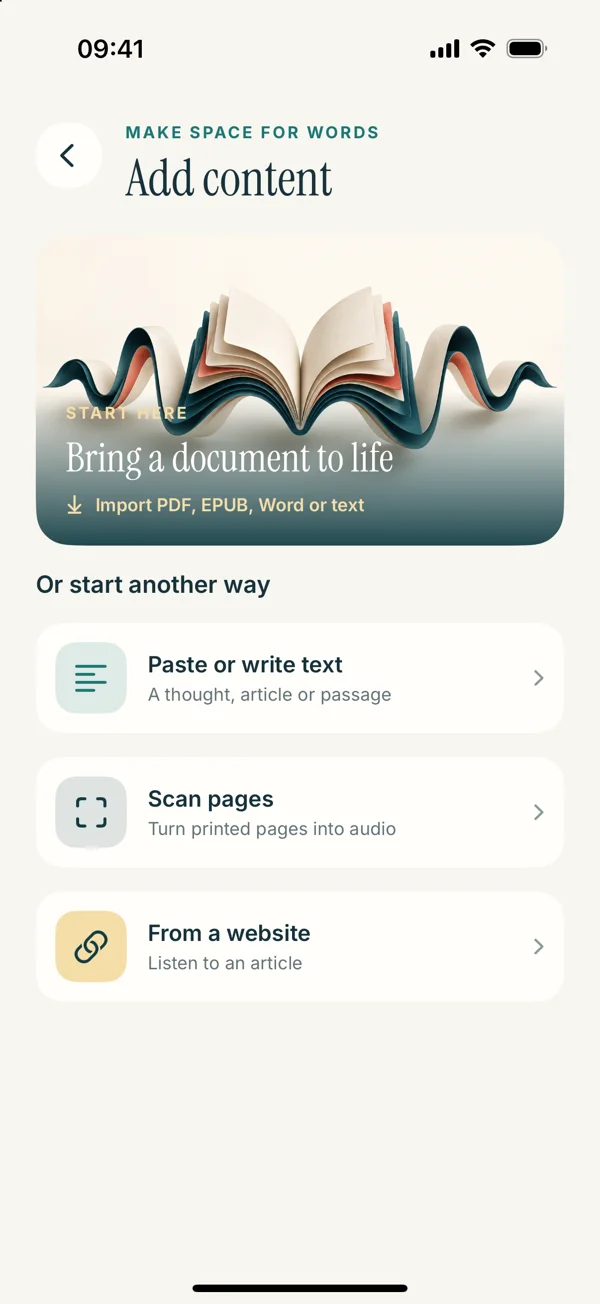
The upcoming Read Aloud release includes a scan-to-text route for page images and photos. That is different from promising that any imported image-only PDF will automatically receive perfect OCR. Use the scan-to-speech guide for the supported preparation workflow and its limits.
If another approved tool has already created a searchable PDF for you, test the text layer before importing it. Recognized words may exist while their order remains awkward. Text availability and reading order are separate quality checks, and passing one does not guarantee the other.
Work through a realistic example
Suppose you receive a six-page workshop handout. Pages one and two contain an agenda exported from Word. Pages three through six are photos of worksheets. The first two pages copy correctly, but nothing can be selected on the remaining pages.
Your goal is to review the prose instructions on page three. Begin there. Obtain a clear image or searchable version of that page, recognize the words if necessary, and compare each instruction with the original. If page three contains a table to fill in, keep the table visible and listen only to the surrounding directions.
Save the resulting text with a title such as “Workshop — page 3 instructions.” That title explains both the source and the scope. It also prevents you from mistaking a partial listening copy for the whole handout. Once the small example works, decide whether the remaining pages are worth preparing.
Check the details that change meaning
A recognition mistake is especially important when a tiny character carries a large difference. Review dates, amounts, negative signs, decimal points, and abbreviated names. A sentence can sound smooth even when the number inside it is wrong.
Look at words split across lines. A scan may preserve a printed hyphen that was only there because a word wrapped to the next line. It may also confuse a genuine compound with a split word. Fix such cases only after comparing them with the source.
For uncertain words, do not silently guess. Mark the location in your notes and return to the page. The listening copy should make the material easier to access, not introduce a new, unacknowledged interpretation of it. This matters particularly for technical instructions and formal documents.
Keep the PDF and the listening copy together conceptually
A prepared text copy can be excellent for hearing the argument, but it may omit the page layout that gives a figure or table its meaning. Preserve a clear connection to the original: title, author or organization, and the relevant section or page range.
When the narration says “see the diagram,” pause and inspect the diagram. A speech reader cannot recover visual relationships merely by speaking labels. If understanding the page requires frequent visual inspection, plan a seated review rather than treating it as uninterrupted audio.
That is a useful decision, not a failure. Some documents are naturally suited to listening; others are better approached with short spoken sections and regular visual checks. The tool should serve the document instead of forcing every source into the same routine.
Bring the usable text into Read Aloud
Once you have a reliable source, choose the corresponding route. Import a text-based PDF using the PDF guide, or paste a checked text copy using the iPhone text-to-speech guide. Select a voice only after the imported passage matches what you intended.
Listen to one short section while watching the source. If that works, increase the session length. If something still sounds wrong, identify whether it is the text, its order, the language of the voice, or the audio output. Naming the failing stage makes the next fix much more specific.
The current App Store release is 1.0.2; scan and redesigned import instructions on this site preview 1.0.3. View the app for current availability before relying on an upcoming feature.
Keep a note of which pages need work
For a mixed document, write a short page list before preparing anything: pages with selectable text, pages that are scans, and pages whose layout needs visual review. This prevents you from rechecking the same uncertainty every time you return. If you receive a replacement file, test those exact locations again. A clear page-level note turns a vague problem with “the PDF” into a few specific checks you can complete.
A small checklist for next time
Before you add another PDF to your reading list, select a sentence, search for a visible word, and test a later page. If the file is a scan, look for a better original before spending time on recognition. If OCR is necessary, compare the result with the page and preserve a clear source reference.
After that, evaluate the listening experience on a representative section. You do not need a complicated process for every simple document. The point of these checks is to notice when a file needs attention before a long session turns into frustrating troubleshooting.
The extension .pdf describes the container, not the quality of the reading material inside it. Once you distinguish visible letters from usable text, it becomes much easier to choose a sensible next step.