 Read Aloud
The useful answer
The upcoming app can recognize text from page images before reading it aloud. Start with clear printed text, check the recognized words, and only then choose a voice and play.
From a printed page to spoken words
Scan-to-speech has two separate jobs. First, text recognition finds words in an image. Then text to speech reads those words. A clear voice cannot correct a number or name that was recognized incorrectly, which is why checking the text belongs in the middle of the workflow.
The upcoming Read Aloud release includes a Scan pages route and photo-based recognition. Recognition quality depends on your device, language, page layout, and lighting. Use a short, clearly printed sample first and compare the recognized words with the page.
This workflow is part of the 1.0.3 preview. Check the App Store version before expecting the redesigned controls on your device.
Choose a manageable page
Start with a short page of clearly printed prose. A flat handout with ordinary spacing is easier to check than a curved book spread with footnotes in two columns. If you need a chapter, process a small sample first so you do not repeat the same capture problem across many pages.
Keep the original. You will need it to verify unfamiliar words, punctuation, and any numbers that matter. The recognized text is a working copy, not a replacement for the page as a source of truth.
For a digital PDF, first check whether its text is already selectable. If it is, use the PDF import guide instead of taking a photograph of the screen. Copying genuine text usually avoids an unnecessary recognition step.
Capture a useful image
Place the page on a steady surface and keep the camera roughly parallel to it. Include the text you need without filling the image with unrelated objects. Make sure the smallest relevant characters are readable in the photo, not just on the physical page in front of you.
Look for glare on glossy paper, a shadow from the phone, and blur at the edges. A bright patch across one line can turn a correct sentence into a guess. Move the light or change the capture position before taking a whole set of pages.
For a book, avoid losing words in the curve near the spine. Photograph a single page when a two-page spread makes the text too small. If the page cannot lie flat, take extra care around the inner margin and inspect those words in the result.
Recognize, review, then listen
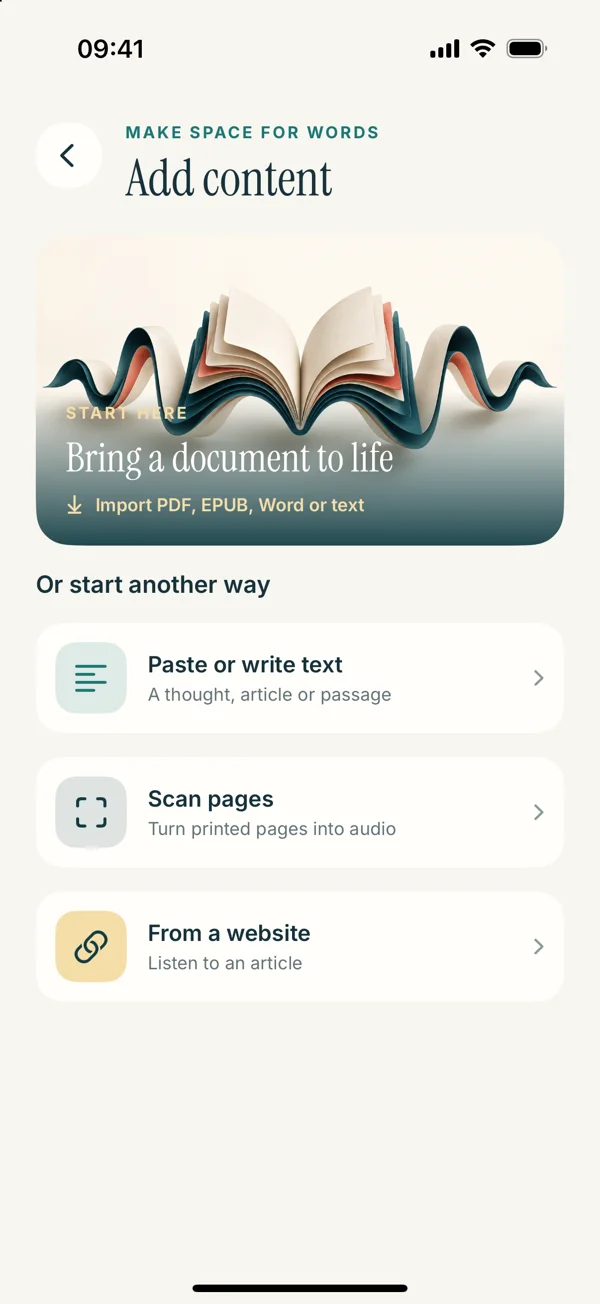
- Open Add content in the upcoming Read Aloud interface.
- Choose Scan pages, then Capture a page.
- Choose Scan with Camera or Choose from Photos and capture or select your page.
- Tap Extract Text, then review the recognized words against the original.
- Tap Save, enter a title, and open the saved result for listening.
Do not judge success solely by whether the app produced a block of text. A plausible-looking sentence may contain one incorrect word that changes its meaning. Compare a few lines at the start, a difficult area, and the final lines before trusting the whole result.
The recognition preview includes Copy rather than an editable text field. If a correction is needed, copy the recognized words, open Paste or write text, and prepare a corrected listening copy there before playing it. Keep the changes factual: restore the source’s words and punctuation. If you cannot tell what a word says, leave yourself a note to inspect the original rather than guessing.
Check the mistakes that are easy to miss
Names, dates, quantities, and abbreviations deserve a closer look because the surrounding sentence can still sound fluent when one is wrong. A letter “O” and a zero may look similar. A small mark can change a decimal, a negative value, or a sentence boundary.
Columns deserve a separate check. Recognition may find every word while combining the lines in the wrong order. Read the first sentence across the column boundary and see whether it still belongs together. If not, work with a smaller region or reorganize an accurate text copy manually.
Handwriting, decorative lettering, formulas, and dense tables are less predictable than ordinary printed prose. Keep a visual copy for those parts. For deeper image preparation, read how to take better OCR photos.
Pick the listening setup after the text is right
Use a familiar voice and a steady pace for the first playback. Hearing the passage can reveal an omitted word or odd paragraph boundary that you missed visually. Pause and compare any suspicious phrase with the original page.
If the language of the source differs from your usual reading language, select an appropriate voice where one is available. A voice mismatch can make correct text hard to recognize. That is a separate issue from recognition accuracy.
Read Aloud has system voice options and optional Plus voices. Check the current app for availability and paid access. The voice guide explains why comparing a consistent passage is more useful than changing several settings at once.
When Live Text is enough
For a short section already visible in a photo, Apple’s Live Text may offer a simple way to select and copy recognized words. You can then paste the permitted text into a reading app. Device and language support vary; use Apple’s Live Text documentation for availability.
You do not need to force every page through one tool. Choose the route that gives you a clean, checkable text result. Our Live Text versus camera OCR article compares the preparation decisions without promising that either method is always more accurate.
Start with one page you can verify
A good first test is a short printed passage you know. Capture it, compare the text, and listen once while looking at the original. When that process works, you can bring in longer material with more confidence. View Read Aloud on the App Store for current release information and access to the app.