 Read Aloud
The useful answer
Read Aloud and Hyperionics' @Voice Aloud Reader are separate Android apps. Both are candidates for listening to your own documents and web text. Try Read Aloud for its saved-library workflow; investigate @Voice if audio-file recording, advanced queues or its documented cross-device tools are priorities. Compare the same file before choosing.
Try your own document. Free download; optional in-app purchases.
Searching for a @Voice Aloud Reader alternative on Android can be confusing because several apps use similar names. This website belongs to Read Aloud, the app linked in our Google Play buttons. @Voice Aloud Reader is a separate product from Hyperionics. The comparison concerns those two apps, not a browser extension with a similar name.
We develop Read Aloud. This article compares documented workflows and our own app's supported controls, checked on 1 November 2026. It is not an independent benchmark, and Hyperionics does not endorse it. There is no invented voice-quality score or claim that one app will import every document better.
Compare the reading job before the voice demo
A voice sample answers whether you like a voice. It does not tell you whether a report's columns arrive in order, whether your ebook opens or whether you can find yesterday's passage. Begin with the material you actually intend to read.
Scroll sideways to see all columns.
| Reading requirement | Read Aloud for Android | @Voice Aloud Reader |
|---|---|---|
| PDFs, EPUBs and web text | Import supported files or website text into a saved library; use DRM-free EPUBs | Document, ebook and web-reading workflows are documented |
| Device speech voices | Voice studio exposes device voices, including Local and Network filters | Local engines and optional cloud voices are documented |
| Export speech as an audio file | Not offered as a general MP3-export workflow | MP3, OGG and WAV recording is documented |
| A reading queue or cross-device handoff | Evaluate the local library workflow; do not assume automatic device sync | Saved queues and Dropbox-based reading-position tools are documented |
| Purchase model | Free download with optional in-app purchases, including Plus | Free with ads; an optional Premium purchase removes ads |
The @Voice format, voice, recording and reading-list entries come from its official feature guides. Its official product page explains the advertising and Premium model. Availability of an optional service or purchase still needs checking in the version and region you use.
Try Read Aloud with one everyday PDF
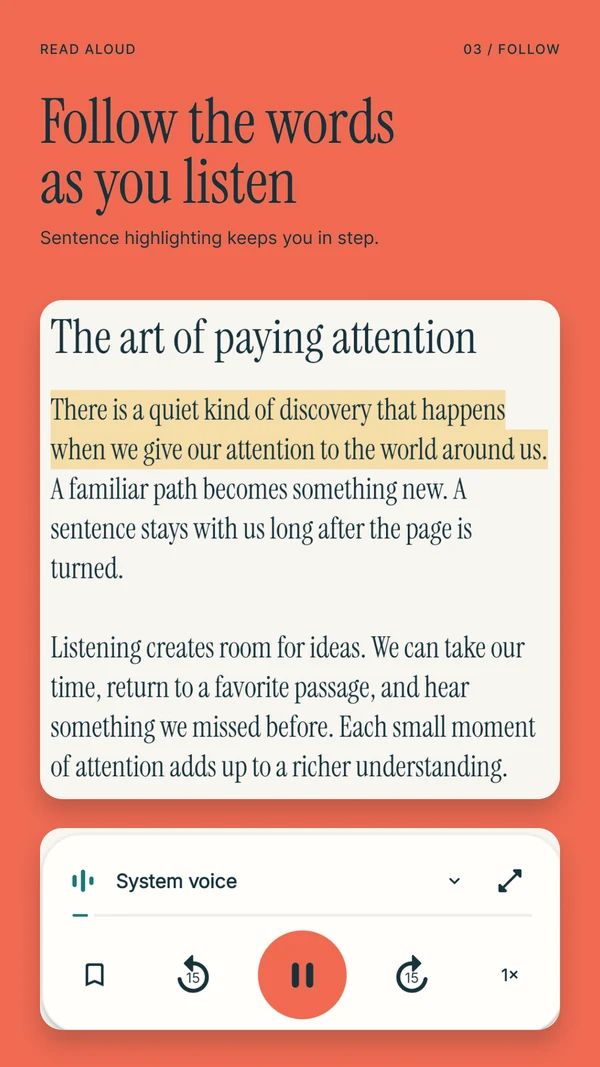
Suppose you have a downloaded report that you want to hear during a walk. In Read Aloud, choose Add content → Import a file, pick the PDF and wait for the library item to appear. Open it and play a paragraph you can also read on the page.
Listen for the things that often make document speech frustrating: a footer inserted in the middle of a sentence, two columns combined out of order or a table spoken without its headings. These are reasons to inspect the source text, not reasons to turn the speed up and hope the problem disappears.
If your PDF has a clean text layer, continue with a longer passage. If it is an image-only scan, ordinary text extraction may be insufficient. Our Android PDF listening guide explains that distinction and the first checks to make.
The same decision applies to web articles. Try importing the article's URL, then check the extracted result. For content you can access and copy, pasting the relevant text is another route when the page includes unwanted navigation. It does not provide access to a page you are not permitted to read.
Get Read Aloud on Google Play to try this document-library workflow with your own reading material.
When @Voice may be the more appropriate choice
If your goal is an audio file you can play in another application, distinguish speech playback from audio export. Read Aloud speaks your content inside its reading workflow; it should not be chosen on the assumption that it will produce a downloadable MP3.
Hyperionics documents recording formats and advanced reading-list tools for @Voice. Someone organizing a sequence of articles or building a recording workflow should investigate those directly. Likewise, a device-handoff requirement deserves a check of its documented connector and synchronization setup rather than an assumption that every reader behaves the same way.
That is a practical reason to keep @Voice on a shortlist. A different interface is not automatically an improvement if changing apps removes the feature you were relying on.
Check offline listening separately
“The file is on my phone” and “the voice works offline” are two different statements. In Read Aloud, open Voice studio, choose Local and select an available device voice. Prepare the document while connected, then turn off Wi-Fi and mobile data and test a passage you have not already played.
The Network filter and Studio voices represent different speech options. Do not infer that every premium voice can synthesize a new passage without a connection. Your device's speech engine and installed voice data matter too.
If listening without reception is your reason for switching apps, perform the same offline test in both candidates. Open the actual saved item, start from a new position, pause and resume. Our offline Android text-to-speech guide walks through a fuller preparation check.
Compare the offer you would actually buy
Read Aloud is free to download and offers optional in-app purchases. Review the plan screen for the features you want, including any limits or renewal terms.
Hyperionics describes its own Premium license as a permanent purchase rather than monthly or yearly billing. That is a different purchase model; it does not mean every optional external voice service has identical terms. Check the current offer from the source you intend to use. This article avoids a universal “cheapest” claim because the relevant features, regional prices and existing purchases can differ.
Make the cost comparison after the document test. Paying less for an app that cannot handle your required task does not solve the task, while paying for features you will never use is unnecessary.
A useful ten-minute switching test
Use one PDF, one short web article and, if you read ebooks, one DRM-free EPUB. Keep the originals available. For each item, note whether it imports correctly, whether you can locate the next section and whether you can return to the passage you paused.
Then test your most important condition: offline playback, an audio export or a particular navigation routine. Choose based on that result. Keep your existing app installed until you have completed a normal reading session in the replacement; importing a file does not automatically migrate bookmarks or preferences.
Frequently asked questions
Are Read Aloud and @Voice Aloud Reader the same Android app?
No. @Voice is made by Hyperionics. The Google Play links on this site identify the separate Read Aloud app. Check the icon and listing before downloading or buying anything. Learn more about Read Aloud.
Is Read Aloud an alternative for listening to PDFs on Android?
Yes, for supported PDFs you can import and read. Check whether the file contains usable text and whether its reading order is sensible. Learn more about reading a PDF aloud on Android.
Should I switch if I need MP3 recordings?
Do not choose Read Aloud for a general MP3-export requirement. Review @Voice's recording tools and applicable terms instead. If your goal is simply listening in the reader, learn how to prepare saved content offline.