 Read Aloud
The useful answer
Download a PDF you can access, then open Read Aloud on Android and choose Add content → Import a file. Select the PDF, check that its text is complete and in order, choose a voice and press Play. A scanned PDF needs usable recognized text; pictures of pages are not automatically the same as readable paragraphs.
Try your own document. Free download; optional in-app purchases.
A PDF attached to an email, a handbook downloaded from a website and a scanned chapter all use the same file extension. That does not mean they contain the same kind of readable text. The fastest route to useful audio is to check the file before comparing voices.
This walkthrough uses Read Aloud for Android, whose Google Play listing describes PDF import, device voices, speed controls and saved reading. We publish the app and this guide. The steps are for Android; the iPhone PDF guide covers Apple's Files workflow.
Get the PDF onto your phone
Use the source's download action and wait for it to finish. An email preview or a browser link can display a document without giving another app a complete local file. Find the downloaded PDF in your file manager and open it once to confirm its contents.
For a cloud file, Android's document picker may let you select it through the provider. That can still require a network connection while the file is retrieved. If you plan to listen during a journey, complete the import before leaving.
A filename ending in .pdf is only a starting check. If the file opens to an error page or a request to sign in, return to its source and download the actual document through your authorized access.
Test a sentence, then look at the layout
Try selecting a sentence in a PDF viewer. If you can copy recognizable words, the file has text you can evaluate. If selection only grabs an image or nothing useful happens, the pages may need optical character recognition, usually shortened to OCR.
Selectability does not establish perfect reading order. Look for these common patterns:
Scroll sideways to see all columns.
| PDF content | What to listen for in your first test |
|---|---|
| A single column of ordinary paragraphs | Complete sentences in the expected order |
| Two columns | Whether the voice finishes one column before moving to the other |
| Repeated headers and page numbers | Interruptions between paragraphs |
| Tables, diagrams or forms | Labels that lose their relationship when spoken in sequence |
| Scanned pages with recognized text | Incorrect letters, missing words or duplicated lines |
For image-only files, ask for a text-based or accessible copy when one is available. An OCR tool may also help, but check the result. Do not assume that importing any scanned PDF produces a complete, accurate transcription. Our PDF text guide explains that distinction.
Import and start listening in Read Aloud
- Open Read Aloud and choose Add content.
- Tap Import a file.
- Use Android's document picker to find the PDF, then select it.
- Open the imported item from the library.
- Compare a paragraph near the beginning and another later in the document with the original.
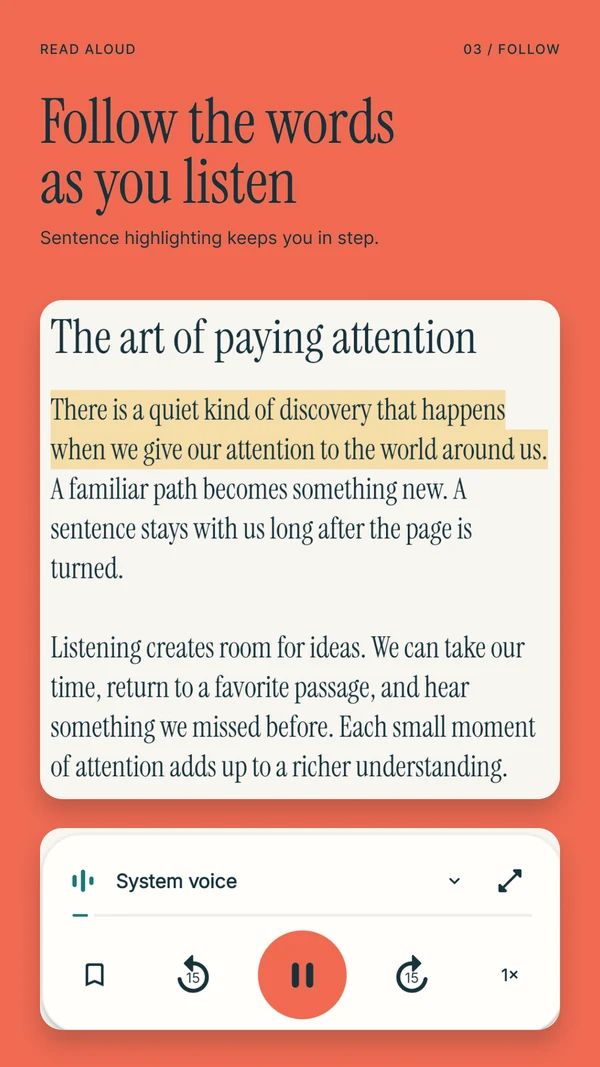
- Choose a voice, set the speed and press Play.
Use a device voice for a straightforward first test. Plus voices have separate access and network requirements; the app's purchase screen explains current options. A more natural-sounding voice will still speak a scrambled passage in the order it receives it.
If you encounter a layout problem, isolate a small section. You can copy permitted, readable text into New text, repair obvious line breaks and save a focused listening item. Keep the original PDF for page references and anything conveyed visually.
Make the first session useful
Suppose you have a twelve-page club handbook. Start with the section that explains an upcoming event rather than automatically playing from the cover. Listen to one complete subsection, pause and check the date or location in the original. Save a passage you want to revisit.
This approach gives you a concrete result: you know what that section says and where to find it again. It also exposes missing text before you rely on the app for the entire handbook.
For an academic PDF, use the separate Android research-paper routine. It addresses figures, citations and the difference between following an argument and checking its evidence. This general guide focuses on getting ordinary PDF text into a working listening session.
Diagnose the result before trying another import
If the voice jumps between columns, compare the extracted sequence with the source and consult the column-order guide. If you hear only a page title, confirm that the saved file includes the body. If playback moves but nothing is audible, check the selected output and the no-sound checklist.
For offline use, follow the saved-file and local-voice setup. Test opening the document again while offline, not just continuing an already playing sample. That checks whether the reading item is available when you return to it.
Questions about PDF text to speech on Android
Can Android read a PDF without a dedicated app?
Some document viewers and accessibility tools offer speech. Availability depends on the viewer and the PDF. A dedicated reader is useful when you want a library, saved progress and reading controls across documents. Learn more about Android reading options.
Does Read Aloud turn the PDF into an MP3?
This walkthrough is for listening inside the app. Do not assume an MP3 export or a downloadable audiobook file is part of that workflow. Learn more about playback and recording options.
Can I listen to a password-protected PDF?
First obtain a readable copy you are authorized to use. Import support and permissions vary; Read Aloud should not be treated as a way to remove document protection. Learn more about PDF text requirements.
Download Read Aloud on Google Play, choose one PDF and test a paragraph. Free download with optional in-app purchases. App capabilities and supporting links checked on 1 November 2026.