 Read Aloud
The useful answer
For a short passage in Pages, enable Apple's Speak Selection and use it on selected text. For a document you want to revisit, export a Word or PDF copy, save it in Files, and import that copy into Read Aloud. A .pages file is not a supported direct import into Read Aloud.
A Pages document can be an essay, a newsletter or a proposal assembled from text boxes. Those documents may look equally readable on screen, but they do not necessarily become equally clear audio. Start by deciding whether you need to hear a few sentences now or keep a listening copy for later.
You can use Apple's speech controls without installing another reader. Read Aloud becomes useful when you want the document in a library with your other reading, with saved progress and passages to revisit. This guide is published by the developer of Read Aloud; Apple does not sponsor it.
Hear a selection inside Pages
Open your device's Accessibility settings and find Read & Speak; older system versions may call this Spoken Content. Enable Speak Selection, return to Pages, select a paragraph and choose Speak from the text menu. You may need to expand the menu to find the action. Apple's iPad speech guide explains the current controls, including Speak Screen.
For an editable Pages document, enter its text area before selecting the passage. If the selection grabs an object rather than words, tap inside the text box or body text first. Begin with one paragraph so you can tell whether you are hearing the intended content.
This route is convenient when checking a sentence during editing. If you move to a different part of the document, select the next passage deliberately instead of assuming that every object on the page has a useful spoken order.
Choose a format for a longer listening session
Read Aloud does not directly open Apple's .pages format. Exporting creates a separate supported file; changing the filename extension does not convert it.
Scroll sideways to see all columns.
| Your document | First format to try | What to check after import |
|---|---|---|
| Essay or report with ordinary paragraphs | Word, producing a DOCX file | Headings, paragraph order and footnotes |
| Document whose page layout you need to reference | Selectable text and the sequence of columns or text boxes | |
| One short section you wrote | Copied text | Paragraph breaks and missing words at the selection boundaries |
The best first choice is the one that preserves the words you need in a readable sequence. A beautiful page layout is not evidence that a speech reader will follow the same visual path.
Export from Pages and save the copy
With the document open, look for Share → Export and Send, then choose Word or PDF. Some Pages versions place Export in the document's actions menu. Save the resulting file to a location you can find in Files. Apple's conversion instructions cover the available export routes.
Name the copy for its purpose, such as “Museum talk — listening draft — 1 November.” Check that the file has finished saving and opens before importing it elsewhere. A collaboration invitation or iCloud editing link is not the exported document.
For a password-protected original, review the exported file's protection as well. Use a copy you are permitted to open and process. A speech app should not be expected to remove document restrictions.
Add the document to Read Aloud
- Open Add content in Read Aloud.
- Choose the file import option and select the DOCX or PDF in Files.
- Open the saved item from your library.
- Compare its first paragraph and one later section with the Pages original.
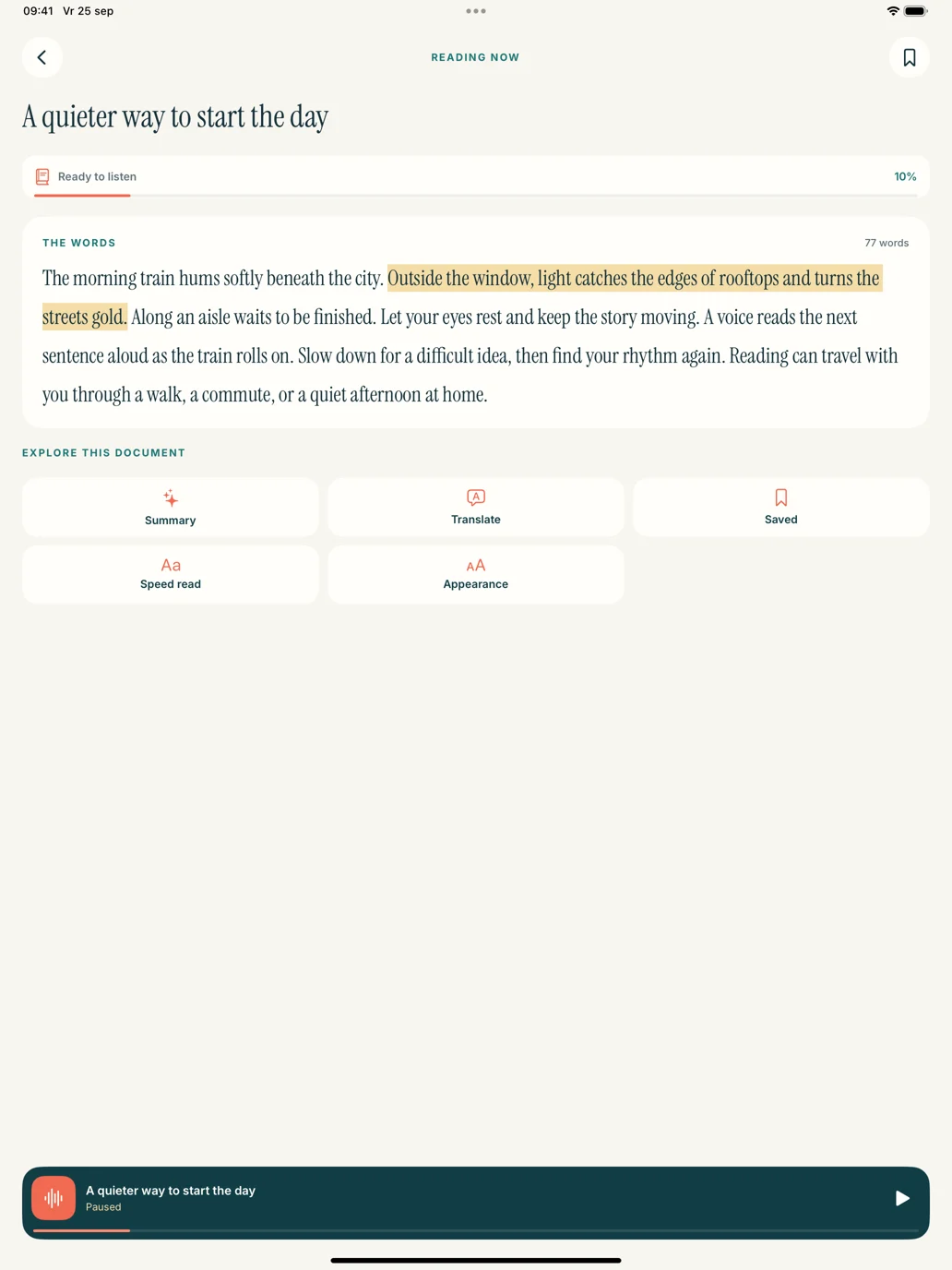
- Choose an available voice, set a comfortable speed and start playback.
For a short excerpt, use Paste or write text instead. Keep the title and any context needed to understand the passage. The Word import guide explains what to check in more complex documents.
Suppose you are preparing that museum talk. Listen to the introduction for transitions and repeated phrases, then mark the paragraph you want to revise. Return to Pages to make the actual edit. Listening can reveal how a sentence sounds, but it cannot verify the accuracy of a historical date or the placement of an illustration.
Keep the editing copy and listening copy in step
An import is a snapshot. Changes you make later in Pages do not automatically update the item already in Read Aloud. After a substantial revision, export again and use a title that makes the newer copy recognizable.
If the audio jumps between boxes or repeats a running header, compare a Word export with a PDF export of the same section. For a particularly elaborate page, copy only the prose into a separate listening item. Preserve the original for layout and reference checking.
Questions about Pages read aloud
Can Pages read aloud without a paid app?
Apple's built-in speech controls can speak supported selected text. Try that route first for a quick listening check. A separate app offers a different workflow for saving and returning to documents. Learn more about iPad speech options.
Can I import a Pages collaboration link into Read Aloud?
Use a supported exported file. A private collaboration link depends on access permissions and an interactive editor; it is not equivalent to an ordinary article URL or a DOCX file. Learn more about supported document imports.
Will listening in Read Aloud change my original document?
No. Treat the imported item as a reading copy. Make corrections in Pages, then export a fresh version when needed. Learn more about listening to review a draft.
Ready to try your own document? Download Read Aloud for iPhone or iPad, import a short export and hear the first paragraph. The download is free, with optional in-app purchases for Plus voices and selected features.
Apple documentation and Read Aloud's public release information were checked on 1 November 2026. Menu wording can vary with the installed system and Pages version.