 Read Aloud
The useful answer
Use Word’s own reading controls for a document you are editing, or import a DOCX into the upcoming Read Aloud release when you want it in your listening library. Check the extracted text before playing.
Decide where the listening pass belongs
If you are editing a Word document, listening inside Word may be the most direct choice. If you want the document beside PDFs, articles, and other saved reading, a separate text-to-speech library may fit better. Start with the job you need to complete rather than assuming you need to convert everything.
Microsoft provides Read Aloud features in supported Word experiences. The exact controls vary by platform and version, so follow Microsoft’s documentation for listening to Word documents. In Word for iPhone, open the ribbon with the pen icon, choose Review, open the gear menu, choose Read Aloud, then press Play. Select Office for iOS in Microsoft’s guide if you need the platform-specific instructions. This built-in option is useful when the original document remains your main workspace.
The upcoming Read Aloud 1.0.3 release supports importing DOCX text. This guide previews that workflow. The public App Store download is currently 1.0.2, so check the release before expecting these import choices.
Use DOCX, not a renamed legacy file
A .docx file is the modern Word document format supported by the upcoming app’s extractor. An old .doc file is a different format. Changing its filename does not change the underlying document, and Read Aloud does not claim support for legacy binary DOC files.
If you have an older document, open it in a compatible editor and save an actual DOCX or another appropriate supported format. Preserve the original so you can compare the result. If the document’s layout matters more than its editable structure, an accessible PDF may be a better listening source, but you should still check its reading order.
For a shared online document, make sure you have downloaded the file itself. A collaboration link is not the same as a local DOCX. Use the editor’s download or save-a-copy action if your access permits it.
Save a clear copy in Files
Before import, choose a filename that identifies the version and purpose. “Proposal — listening draft” avoids confusion with the final file you will send. If colleagues are still editing the source, note when you made the copy so you do not treat an older listening version as the latest text.
The app’s import is a reading workflow. It is not a promise of live two-way editing with Microsoft Word. Corrections you identify while listening should be applied to the original document in your editor. Then make a fresh listening copy if you want to verify the revision.
This distinction is useful for essays, reports, scripts, and meeting documents. You can hear the flow in Read Aloud while keeping the authoritative version in the place where you normally write.
Import and inspect the text
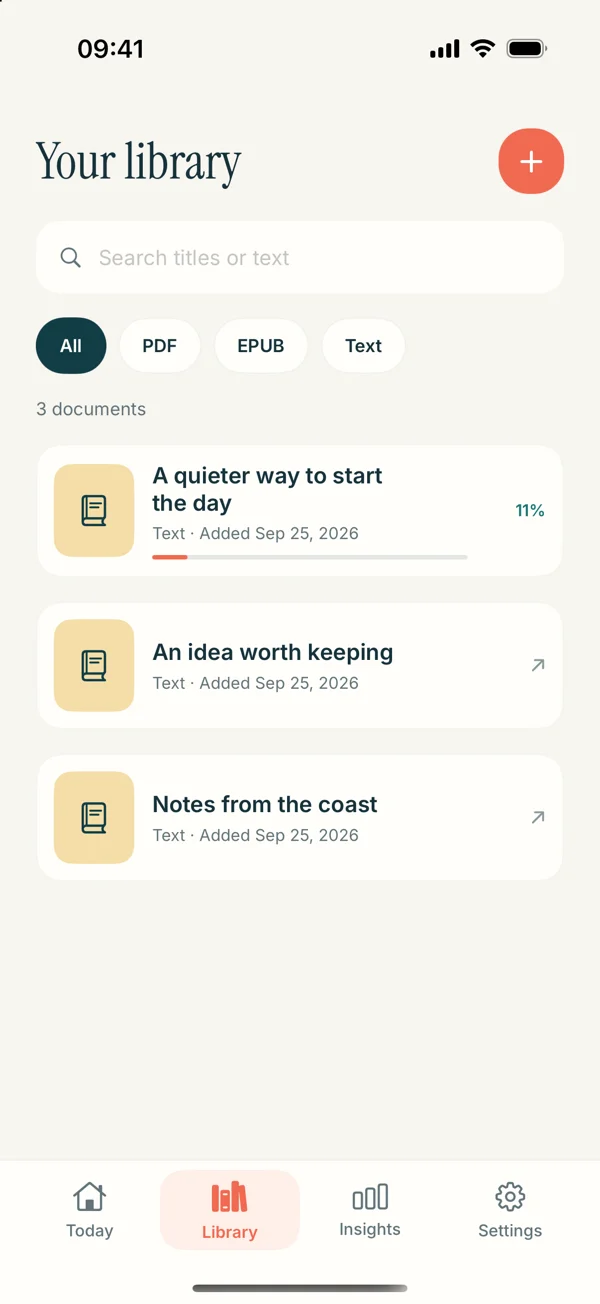
- Open Add content in the upcoming app.
- Choose the document import option.
- Select the DOCX from Files.
- Open the imported item from your library.
- Compare the beginning, a middle section, and the ending with the original.
Start with a short document of ordinary paragraphs. Large files, advanced layouts, and embedded elements may need more checking before the extracted text makes sense as continuous speech.
Look particularly at text boxes, tables, footnotes, headings, and lists. If a paragraph is missing or out of order, do not solve it by changing the voice. The source representation needs attention first. For a short passage, a clean pasted text copy can be more dependable than repeatedly importing a complicated layout.
Listen for the structure of the writing
For a first pass, listen at a comfortable pace without stopping at every small issue. Notice where an argument loses direction, where a transition feels abrupt, or where a sentence is too crowded to follow. Record the location of the problem and keep the original document available.
Then make a second pass through those specific sections. A listening review can bring attention to repeated words and awkward rhythm, but it will not reliably identify every spelling error or factual problem. Some different spellings sound identical. Formatting, citations, and tables still need a visual check.
Our article on proofreading an essay by listening provides a fuller review routine with separate listening, editing, and visual passes. It is a practical editing method, not a guarantee that a document will become error-free.
Handle RTF and presentation files thoughtfully
The upcoming release also includes text extraction for RTF and modern PowerPoint files. Those can be useful routes when the material already lives in another format, but the listening result should still be checked against the original.
Slide text is often incomplete without the speaker’s explanation. A diagram label is not a spoken account of the diagram. If your real goal is to rehearse a presentation, a written speaking draft may make better listening material than the slide deck itself. See preparing slides for a listening review.
Legacy binary PPT is not a supported substitute for PPTX. Do not rename files to force an import. Make a proper export in the source application and confirm that the text you need is present.
Select the voice after the file is settled
Choose a system voice and play a representative paragraph. Compare other voices only after you know that the text is correct and in order. Read Aloud Plus voices are optional paid choices; check the current app for access and prices.
Slow the pace for a formal argument with many qualifications. A fast skim might be useful for a familiar draft, while a final review needs enough space to hear what the sentences actually say. The voice guide can help with that setup.
Begin with a short document you wrote yourself. It is easy to verify and gives you a clear sense of the workflow. View Read Aloud on the App Store and check the release notes for the updated import experience.