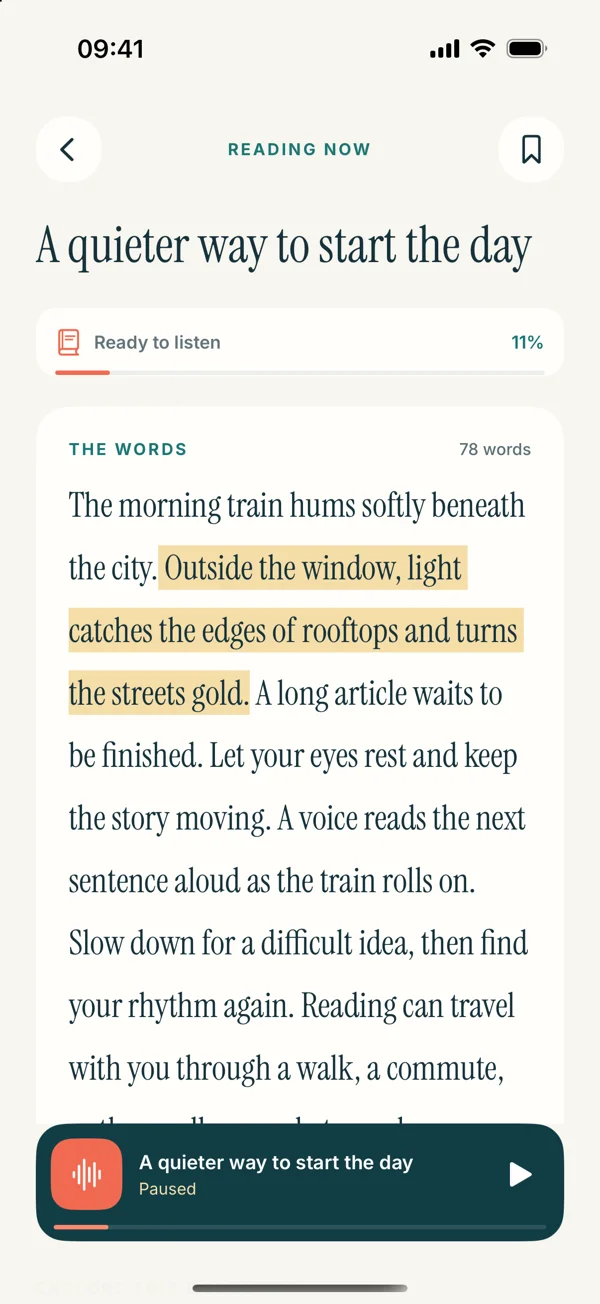
 Read Aloud
The useful answer
For a saved listening session on your phone, export your Google document as DOCX or PDF and import that file into Read Aloud. A private Docs editing link is not a readable article import. Google's own Gemini audio instructions describe a computer workflow with an eligible plan; mobile export is a separate route.
Google Docs is where you write and collaborate. A listening app can be where you review a copy away from the editor. Keeping those roles clear makes it much easier to avoid a stale draft, a broken link or the assumption that your comments will be read as part of the document.
This guide covers your own documents and files you have permission to export. We make Read Aloud; the workflow below uses its document library rather than claiming an integration with your Google account.
Choose between Google's audio and a mobile listening copy
Google now documents audio generation with Gemini in Docs. Its instructions start on a computer and require an eligible Google Workspace or Google AI plan. Full tab narration and a generated summary are separate choices. Do not follow a desktop menu tutorial expecting the same controls in every phone app.
For a document you want to hear in a mobile reader, the alternative is a supported exported file. Google's iPhone and iPad guide lists DOCX and PDF export. Its Android guide also lists those formats.
Scroll sideways to see all columns.
| Your immediate goal | Useful starting point |
|---|---|
| Hear a brief passage while editing | Copy permitted text into a speaking tool or use your device's supported speech controls |
| Keep a whole document in a phone reading library | Export DOCX or PDF and import the file |
| Use Google's own generated audio on a computer | Check the Gemini audio feature and your account's eligibility |
| Review the newest collaborative changes | Return to the live document before making a fresh listening copy |
Export a usable file from Google Docs
Open the document and check that you have the right version and account. Use its menu to find the sharing or export actions. Depending on the platform and app version, these may be labeled Share & export, Send a copy or Save as. Choose DOCX or PDF, then save or send the resulting file to a location you can access from the phone's document picker.
On iPhone, save the copy in Files. On Android, choose an accessible device folder or document provider. If the export creates a copy in Drive, make sure the actual file downloads before you need to use it without a connection. Marking a Google document available offline inside Docs is not the same as exporting a DOCX for another app.
Start with DOCX for ordinary prose. Try a PDF when referring to the source page layout matters, then check whether the paragraphs arrive in a useful reading order. Neither format guarantees that charts, suggestions and floating text boxes will be narrated the way you expect.
If copying or downloading is disabled, ask the document owner for an authorized listening copy. Making a private document public is not a necessary step in this workflow.
Import on iPhone or iPad
In Read Aloud, open Add content and choose the file import option. Find the exported DOCX or PDF in Files, import it and open the library item. Compare the heading and first paragraph with the original Google document.
For a single section, choose Paste or write text instead. A clear title, such as “Workshop outline — opening section,” makes the saved excerpt easier to identify later. Select an available voice and listen to a paragraph before committing to the whole document.
The Word-document listening guide explains DOCX text extraction in more detail. The imported file does not need to have been written in Microsoft Word; the file format is what matters.
Import on Android
Open Add content → Import a file in Read Aloud for Android. Select the downloaded export using Android's document picker. For a short copied excerpt, choose New text, add a title and save it to the library.
Open the item, check a middle section as well as its beginning, and choose a device voice or an available Plus voice. Set the pace for the material. A dense project brief usually needs more attention than a familiar outline, so start with a short listening session.
If your export only contains a title or an error message, go back to Docs and inspect the file you saved. Changing the voice cannot restore text that never reached the reader.
Keep a reliable revision routine
Imagine that two people are editing a workshop agenda. You export it in the morning, but your colleague changes the timing after lunch. Your saved reading item still contains the morning copy.
Add a date or revision label to listening copies when the document changes often. After reviewing it, make corrections in Google Docs and export again when needed. Read Aloud's library is not a live view of the collaborative editor, and Android and iOS libraries do not automatically synchronize with each other.
For review comments, retain the original document. Do not assume that suggestions, resolved comments or formatting-only changes are included in extracted speech. Listen for flow and content, then inspect the collaborative details in Docs.
Questions about Google Docs text to speech
Can I paste a private Google Docs link into website import?
Use an exported file instead. A private editing URL can require authentication and does not provide the same content as an ordinary public article page. Learn more about importing DOCX files.
Does Read Aloud need access to my Google account?
This workflow uses a file you export and select. It does not require granting the app access to your entire Google Drive. A cloud provider in your phone's picker manages its own account access. Learn more about document listening on Android.
Can I listen offline after importing?
On Android, prepare the document and an installed local voice, then test them with networking off. Saving a file alone does not make every voice or online feature work offline. Use our offline Android guide for the complete check. Learn more about offline preparation.
Try one short document: download Read Aloud for iPhone and iPad or get it on Google Play. Both are free downloads with optional in-app purchases; subscriptions are separate by platform. Sources checked on 1 November 2026.