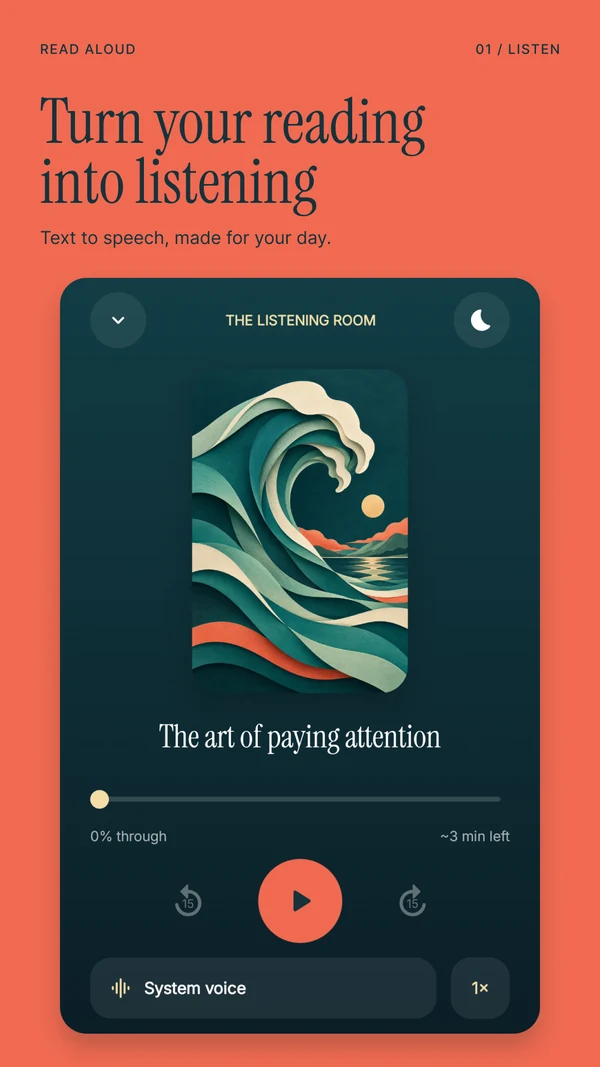
 Read Aloud
The useful answer
Chrome does not offer Listen to this page on every website. Open the page in the Chrome Android app, check its More menu and compare with another text article. Review Google's current feature requirements. If the page remains unsupported, try importing its URL or text you are allowed to copy into Read Aloud.
Try your own document. Free download; optional in-app purchases.
You open an article, tap Chrome's menu and cannot find the listening command that appeared on another page. Before changing several settings, determine whether the problem follows the page or follows the browser. That distinction saves a lot of unproductive tapping.
This guide covers Chrome on Android. Safari's similarly named action and Google's separate Reading mode app have different controls. For Apple's browser, use our Safari Listen to Page troubleshooting guide.
Check the page before changing the phone
Google's Listen to this page documentation says the feature is unavailable on some websites. Open a text article in Chrome itself, let it load, and check More → Listen to this page. Compare it with a second, ordinary article. A document preview, interactive dashboard or sign-in screen is a poor comparison sample.
If the option appears on the second article, you have evidence of a page-specific limitation. If it appears on neither, review the browser setup. The comparison does not identify every possible cause, but it narrows the next step.
Scroll sideways to see all columns.
| What you observe | Useful next check |
|---|---|
| The option appears on one article but not another | Whether the first URL exposes an ordinary readable article |
| A link is open inside another app | Open that URL in the Chrome app and check its own menu |
| The option appears but playback cannot start | Connection, selected mode and whether the article has fully loaded |
| The voice gives a recap rather than the full text | The player's playback mode |
Avoid repeatedly clearing browser data just because one page is unsupported. That can sign you out of websites without changing the page's eligibility.
Review Chrome's current requirements
Check for a Chrome update through Google Play, then reopen the article. Google's help currently lists Make searches and browsing better as a requirement for this listening feature. Read that setting's explanation before deciding whether to enable it. If you prefer to leave it off, choose another listening route.
A setting or update is not a promise that every page will become readable. In particular, a URL that shows an account gate or only loads the desired text after interaction may need a different approach.
Keep your comparison simple: the same URL, in the same browser, with one change at a time. Record whether the menu item is absent or playback fails after you select it. Those are different symptoms when you report a problem.
Choose full narration when that is what you want
Chrome distinguishes Standard playback, which reads the page's words, from AI playback, which generates a podcast-like conversation. Use the player's mode control to choose Standard playback when you want the original wording. Google notes that AI playback can be the default where available.
A generated conversation and a complete spoken article serve different purposes. If you need a quotation, an instruction or an author's qualification, keep the source text accessible and check the relevant passage directly.
Save the article in Read Aloud
We make Read Aloud, an Android app with a saved listening library. It offers another route for an article you want to revisit:
- Copy the article's actual URL from Chrome.
- In Read Aloud, open Add content → From a website.
- Add the URL and let the app retrieve the available text.
- Check the title, opening paragraph and ending before listening.
- Choose a voice and press Play.
Website import is not a universal extraction service. If the saved item contains a sign-in message or navigation instead of the article, do not treat that as a successful import. For an accessible passage you are allowed to copy, use New text, paste the passage, give it a useful title and save it to the library.
That second route is particularly useful when the article is visible to you but its page structure confuses automatic extraction. Keep headings and paragraph breaks so the saved version remains understandable. Our web-reader cleanup article explains how to spot missing sections and unwanted menus.
Prepare a reading queue with complete articles
For example, before a train journey, save one feature story and listen to its first minute. Check a sentence near the end as well. If both sections are present, add your next article. This is more useful than saving ten URLs and discovering during the journey that most contain only a subscription prompt.
For a journey without reliable data, use the separate Android offline listening checklist. A saved article and an installed voice are separate requirements; a network voice can still need a connection.
Common questions
Is a missing option proof that Chrome is broken?
No. Google documents page eligibility limits. A comparison with another text article helps distinguish that case from a broader setup or playback problem. Learn more about Android article listening.
Can Read Aloud bypass a paywall?
No. Import content you have permission to access and process. Your ability to view an article after signing in does not automatically give another app the same access. Learn more about checking imported website text.
Do I need an app for every article?
No. Chrome's built-in action may be enough for a supported page. A dedicated library is useful when you want to organize reading and return to it later. Learn more about Google Reading mode and reading apps.
Get Read Aloud on Google Play and try one article from your own reading list. It is free to download, with optional in-app purchases. Google documentation and app information were checked on 1 November 2026; no affiliation with Google is implied.