 Read Aloud
The useful answer
Safari’s listening option is not available on every webpage. Confirm you are in Safari on a supported article, then try a clean article view or use a permitted text copy in a reading app.
A missing button is a clue, not a complete diagnosis
You open an article and look for a way to hear it, but Safari does not show the listening action you expected. The page clearly contains words, so the absence can feel arbitrary. The important point is that a browser’s article-listening feature is not a universal reader for every screen on the web.
Pages vary in structure, language, access requirements, and how their content is delivered. A simple article and a dashboard full of interactive panels are both webpages, but they do not provide the same kind of reading material.
Start by identifying the page and the browser context. Then choose a fallback based on the text you can legitimately access. Repeatedly searching the same menu without checking the source rarely adds useful information.
Confirm that you are in Safari
Links opened from other apps may appear inside an embedded browser rather than the Safari interface you expect. The available menus can differ. If appropriate, open the page directly in Safari and try again there.
Also make sure you opened the article itself rather than a search results page, a social feed, or a site’s homepage. Those pages often contain snippets and navigation rather than a single continuous story. Follow the title to the source article before looking for article-specific controls.
If the source redirects you, inspect where you ended up. A login page or region-selection screen is not the article, even when the tab title resembles the content you intended to read.
Use Apple’s current instructions as the baseline
On a supported article in Safari, open the Page Menu beside the address field and choose Listen to Page. If the action appears, select it to start playback.
Apple’s Safari webpage listening guide describes the built-in action and playback controls for supported pages. Use that guide to confirm the current menu route on your device rather than relying on a screenshot from an older interface.
The key limitation is supported content. Seeing text on a page does not guarantee the browser can offer that particular listening experience. If the action is absent, test a straightforward public article to see whether the issue is specific to the original page.
A comparison page is a diagnostic tool, not a reason to abandon your original article. If the simple page works, you have evidence that the original content or access context deserves a closer look.
Check whether a readable article body is available
Look at the page itself. Is the full article present, or only a headline and a subscription prompt? Does the text load after another action? Is the main content actually an image, a PDF viewer, or a series of embedded cards?
An article view, when offered, can make the body easier to inspect. But do not assume that a cleaner-looking view contains the entire story. Check the opening, a middle paragraph, and the ending, especially for long or paginated articles.
If the page is an image of text, ordinary article extraction may not have words to use. A photo or scan workflow is a different route and needs recognition plus review. The scan guide explains the upcoming app’s approach and its limits.
Try a selected-text route for a short passage
For a small amount of text you can select, the iPhone’s system speech tools may be enough. This avoids turning a one-paragraph task into a full article import. See the iPhone text-to-speech guide for the built-in baseline and the saved-app alternative.
Selection itself is also useful evidence. If you can copy coherent text, you can inspect it in a plain text field and decide whether a reading app is a suitable fallback. If the copied result is mostly menus or fragments, the source needs more preparation.
Keep the scope small. Copy the passage you need, preserve its context, and respect any access or copying limits. A missing Safari button is not a reason to bypass restrictions on the source.
Use a reading app when you want to save the article
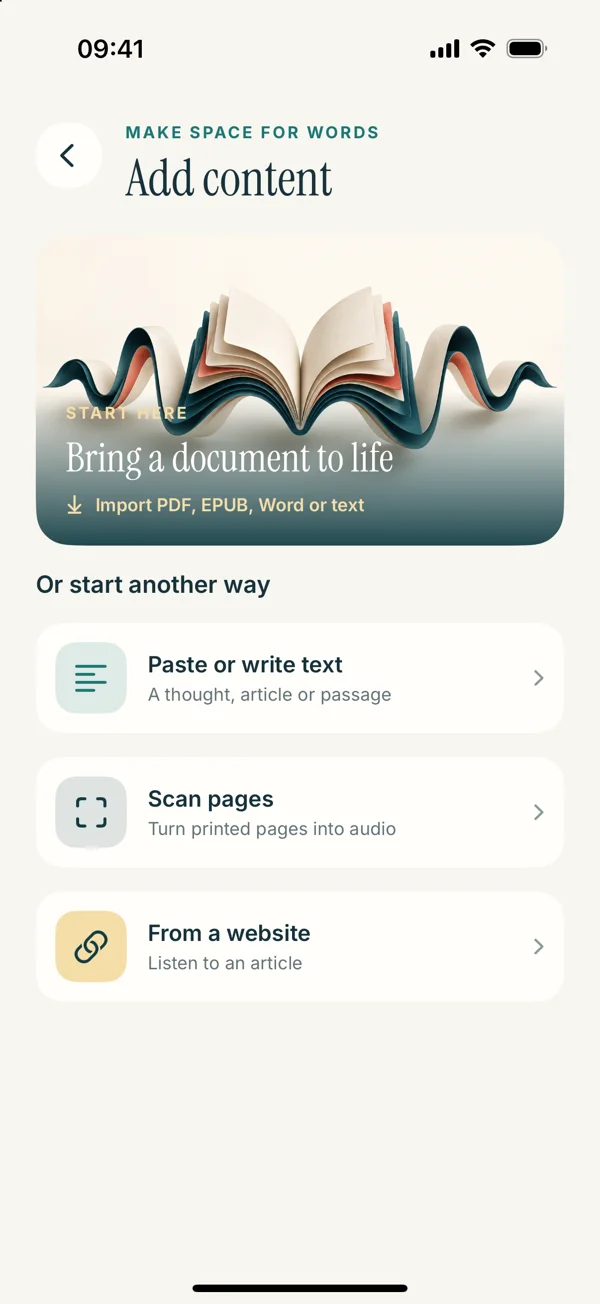
Read Aloud offers a website import workflow for articles you want in a library alongside other reading. In the upcoming redesign, open Add content, choose From a website, and paste the direct article URL. The public app already includes web imports, though its screens may differ.
After importing, inspect the text before pressing play. A separate app’s request may not have the same signed-in access as your browser. It may receive a login screen, a short preview, or an extraction error even while Safari displays the full article.
The webpage listening guide walks through the successful route and the permitted copy-and-paste fallback. It does not promise that every website can be imported.
Understand why a paid article may behave differently
When you sign into a website in Safari, that browser session may have access that another importer does not share. Copying the URL does not necessarily transfer your session or your subscription credentials to the reading app.
Use the publisher’s own reading, download, or export options when available. If your access permits copying the text for your use, a checked text copy may be a practical route. If the site does not provide the content to you, another app should not be expected to unlock it.
This is a source-access issue, not a voice issue. Changing language or speed will not make an importer retrieve a page it cannot access. Identifying the stage that failed keeps your troubleshooting focused.
A worked example: a public news article
Suppose a news page opens from a messaging app and shows no familiar Safari listening menu. Open the direct article in Safari. If the action appears there, the embedded browser context was the relevant difference.
If it remains absent, inspect whether the full prose is present. Try a clean article view if available, then test a short text selection. If you want to save the article, import its URL into Read Aloud and compare the extracted opening and ending with the page.
If the import includes menus, do not start a long listening session and hope the noise disappears. Use the web extraction cleanup article to decide whether a smaller checked text copy is the more sensible input.
A worked example: a page built around an interactive graphic
Now imagine a story where each swipe changes a map and reveals a sentence. Even if you can obtain the words, their meaning may depend on the visual sequence. A simple reading voice cannot reproduce every relationship shown by the map.
For that story, listen to any available prose introduction, then inspect the interactive section visually. You might write your own short notes afterward and hear those if that helps your review. Label them as your notes rather than an exact version of the original article.
The absence of a convenient listen action may be a sign that the page is not naturally suited to continuous speech. A mixed reading method can serve the content better than trying to force the entire experience into audio.
Check the extracted text for completeness
Whether you use a system selection or an app import, compare more than the first sentence. Look for a missing continuation, an abrupt ending, or a “read more” marker that means only part of the article was captured.
Keep the source link with your reading notes. If a claim surprises you during listening, return to the original before quoting or acting on it. A saved text extract can become stale if the publisher later corrects the article.
For a long piece, a short sample playback is still worth doing. It can reveal repeated captions or inserted recommendations that were easy to skim past visually. Fix the source copy before changing the listening voice.
Set up the listening experience after the input works
Choose an appropriate voice and start at an easy pace. A news report with many unfamiliar names may need slower playback than a familiar opinion piece. Use the voice selection guide if you want a consistent comparison.
If there is no sound at all, the problem has moved to the audio stage. Check output destination and volume using the no-sound article. Do not keep re-importing an article whose text is already correct because the speaker is routed elsewhere.
Separating page access, extraction, and playback makes each step simpler. You know what succeeded, what failed, and which setting is relevant to the next attempt.
A useful fallback ladder
Open the direct article in Safari, check Apple’s current listening route, inspect the actual article body, try a short selection, and use a saved-app import when that fits your goal. If extraction fails, prepare a permitted text copy or choose the publisher’s own route.
Stop when you have a reliable way to hear the material you need. You do not need to diagnose every possible browser behavior once the task is solved. Keep a source reference and check important details against the original.
Read Aloud is one option for that saved listening workflow. Its upcoming interface is previewed across this site, while the App Store identifies the version currently available to download.