 Read Aloud
The useful answer
For a supported page, Safari may offer built-in listening. For a saved reading library, copy a public article URL into Read Aloud’s website import option, review the extracted text, and play it.
Start with the article you want to hear
A webpage contains more than an article. It may include menus, subscription prompts, recommendations, comments, captions, and interactive elements. A useful web-listening workflow starts by finding the actual prose you want to hear and checking that the chosen method captures it.
If you only need to hear one page, try the browser’s reading option first. If you want to keep articles beside documents and pasted text, importing them into a dedicated reading app can make more sense. Read Aloud is designed for that saved-content workflow.
Website imports are part of the public app. The controls and library described here preview the redesigned 1.0.3 release, so the current App Store version may arrange them differently.
Try Safari’s built-in option for a quick listen
Apple documents a Listen to Page option for supported Safari webpages. Open the page menu and look for that action. Availability depends on the page and device context; a website displaying text does not guarantee that Safari will offer listening. Follow Apple’s Safari listening guide for the current controls.
This can be the shortest path when you simply want to hear an article once. If the control is missing, do not assume the words are impossible to read aloud. The page may not expose a supported article view. Our Safari troubleshooting article explains the next checks.
Import a link into Read Aloud
- Copy the article’s URL from the browser.
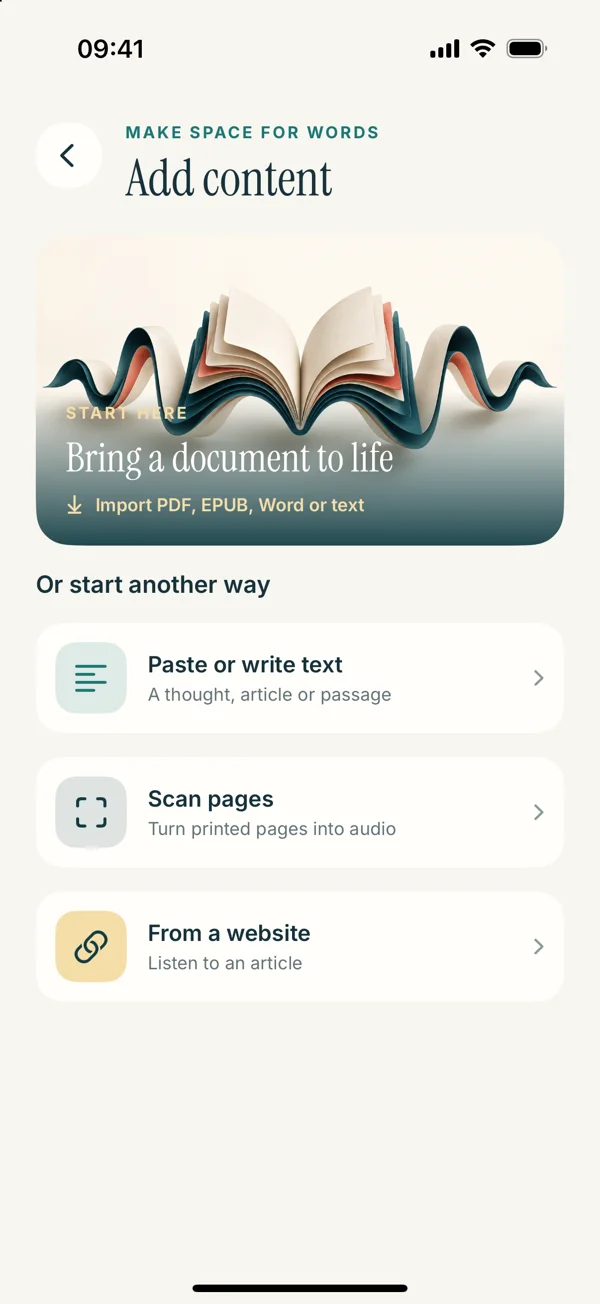
- Open Read Aloud and choose Add content.
- Select From a website in the redesigned interface.
- Paste the URL and start the import.
- Review the extracted article before listening.
Use the page’s direct URL rather than a search results URL. A search page contains links and snippets, not the complete article you intended to save. Similarly, a social feed or site homepage may contain many fragments rather than one coherent reading item.
A useful title helps later. If the imported title is generic, use a recognizable topic in any saved text copy you make. “Article about urban trees” is easier to find in a library than “Home” or “Untitled.”
Check the beginning, middle, and end
Read the first paragraph, inspect a paragraph in the middle, and check whether the ending is present. This quick test catches several common failures: a cookie notice imported as the article, a teaser instead of the full text, or only the first part of a paginated story.
Look for abrupt changes in topic. A paragraph about a news event followed by “You may also like” is usually page furniture, not part of the author’s argument. Captions may be relevant, but they can sound strange without the image they describe.
If the extraction contains too much clutter, use a separate text copy containing the portion you are permitted to copy. Keep the article title and source link somewhere you can return to them. The web-menu troubleshooting article covers deciding what belongs in a listening copy.
Handle pages that require a login
An import tool does not necessarily share the browser’s signed-in session. You may be able to read a page in Safari while an app’s request sees a login screen, paywall, or access error. Repeating the same import often does not change that difference.
Use a source-provided download or export option if one is available to you. Otherwise, copy only material you are entitled to access and use. This is not a method for bypassing a paywall. If the page prevents copying or provides only part of the article, respect that limit and choose another legitimate reading route.
Interactive articles can also be poor candidates for continuous speech. If understanding depends on a slider, animation, or changing chart, listening to the prose alone leaves out part of the story. Keep those pages available for a visual visit.
Make the article comfortable to hear
Once the text looks right, select a voice and play a short sample. Article headlines, dates, and author names may sound different from the body. Let a full paragraph play before deciding whether the pace suits the material.
Slow down for dense reporting, unfamiliar names, or arguments with many qualifications. Increase the pace only if you can still follow what each sentence adds. Our guide to choosing a reading voice helps you compare voices without confusing voice changes with changes in speed.
If the article has lists, listen for whether the list boundaries remain obvious. In a cleaned text copy, separate items with sensible punctuation and line breaks rather than merging everything into one sentence. Preserve the original meaning when preparing a passage for speech.
Build a reading list you can finish
Start with two or three articles, not every tab you have open. Choose one because you need it, one because you are curious, and one simply because it looks enjoyable. A small list makes it easier to notice whether listening fits your day.
Before a session, pick the specific article you want to hear. Open the saved piece you want, listen, and return to its text when something deserves another look.
The useful result is not a larger backlog. It is an article you actually spent time with. Download Read Aloud, try one accessible web article, and use the saved library as a place for words you want to revisit.