 Read Aloud
The useful answer
Choose a voice in the app that is doing the reading. Compare the same short passage at the same speed, match the language of the text, and check whether your chosen voice requires paid access.
First, identify which app is speaking
A common source of confusion is changing one voice setting while another app continues to use its own selection. iPhone’s system reading controls and a dedicated reading app are different places to configure speech. Start by identifying where you pressed play.
For the iPhone’s built-in speech tools, current Apple guidance places Voices under Settings → Accessibility → Read & Speak. See Apple’s current reading controls. If you are reading inside Read Aloud, use the app’s own voice controls. A change in one place should not be assumed to change every other reading service on the device.
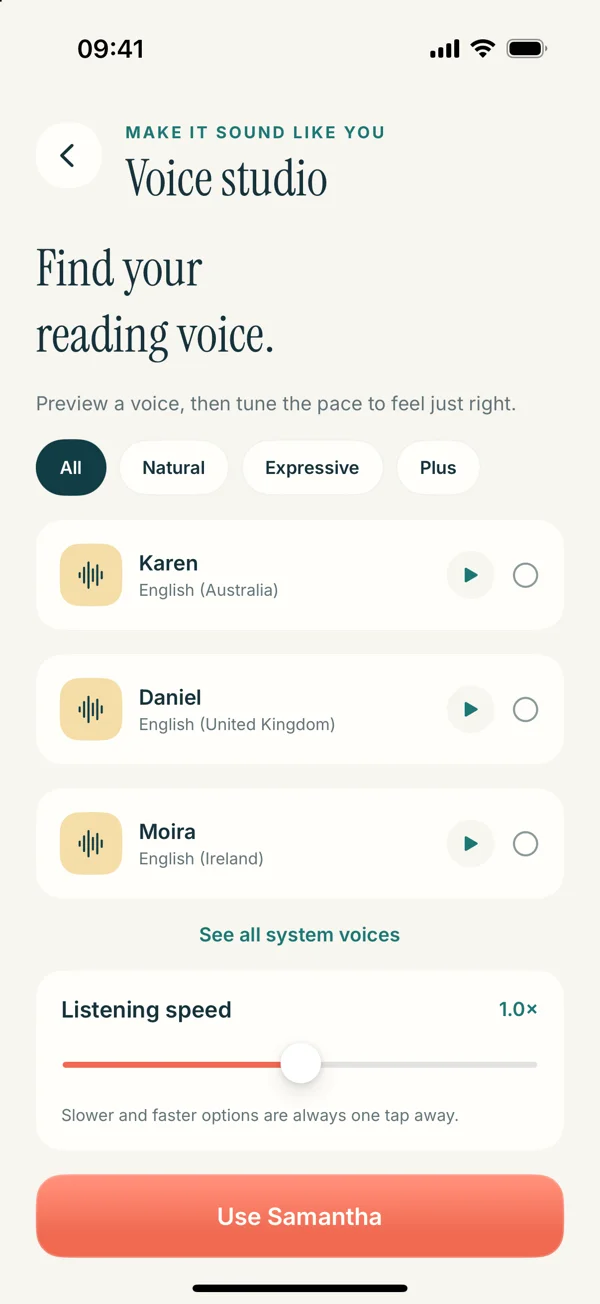
The Read Aloud steps below preview the redesigned Voice studio in version 1.0.3. The current public app is version 1.0.2, so the controls may be arranged differently until that update is released.
Pick a passage that represents your reading
Choose about a paragraph of the material you actually plan to hear. It should include an ordinary sentence and at least one feature that matters to you: a name, a long clause, a list, or a quotation. Avoid judging a whole voice on a cheerful greeting that has little in common with your documents.
Use exactly the same passage when comparing voices. If the source changes, it becomes harder to tell whether a better result comes from the voice or simply from easier text. Keep the speed constant for the first comparison too.
For example, if you mostly listen to reports, include one sentence with a date and a measured qualification. If you listen to fiction, include some dialogue and narration. The test should resemble your real use, without becoming a performance contest.
Open Voice studio in the upcoming app
- Open a text item or the listening controls in Read Aloud.
- Open the voice selection screen, labeled Voice studio in the redesign.
- Preview an available system voice.
- Select the voice you want to use and return to the passage.
- Listen to the whole test paragraph before changing another setting.
The new screen displays a voice name and language or regional label. Use that information to match the text rather than guessing from the name alone. A voice designed for a different language can pronounce perfectly correct source text in a way that is difficult to understand.
System voice availability can depend on the device’s installed voices and configuration. If an expected choice is missing, check the available system options rather than assuming it was removed from your document.
Separate voice choice from paid access
Read Aloud includes system voice options and optional Plus voices. The app being free to download does not mean that every voice is free to use. Locked choices in the upcoming interface lead to the Read Aloud Plus purchase screen.
Check the plan, renewal terms, and price shown inside your app before buying. Prices and eligibility can differ by region and account. This guide does not quote a plan price or promise a free trial, because the live purchase screen is the right place to confirm your offer.
If you are simply testing whether listening fits your routine, begin with a system voice and a short passage. Make a paid decision only after you know which additional features you want. A different voice does not repair missing text or a badly ordered PDF.
Match language, then consider accent
Language compatibility comes before personal preference. When text contains several languages, one voice may not handle every sentence equally well. Consider separating passages if switching between languages makes the result difficult to follow.
Within an appropriate language, try the regional choices available to you. Accent preference is subjective; familiarity can affect how easily you follow names and sentence rhythm. You do not need to select the accent used by the author if another available voice is more comfortable for you.
For specialist names or abbreviations, compare against the source. An unusual pronunciation may reflect an ambiguous spelling rather than a broken voice. See handling mispronounced names for ways to prepare a separate listening copy without changing the original document.
Adjust speed after you choose the voice
Once you have a preferred voice, change the listening pace in small steps. Play the paragraph again and ask whether you can explain its main point without replaying it. If you notice that you heard the words but lost the argument, slow down.
Different sources call for different settings. A familiar draft may tolerate a brisk review; an unfamiliar explanation often needs more time. A single preferred speed is a starting point, not a rule you must keep for every file.
The listening speed article gives a practical calibration routine. It treats comprehension and comfort as the useful checks, without promising a particular words-per-minute target or a guaranteed productivity improvement.
Know when the source needs repair
If every voice pauses strangely at the same place, inspect the text. Accidental line breaks, punctuation copied from another layout, or a repeated page header may be creating the problem. Voice shopping can hide the cause without solving it.
If the words jump between columns, use the PDF reading-order article. If a web import reads menus, use the article extraction checklist. If the text is clear but no sound comes out, follow the audio troubleshooting steps.
Keep the comparison simple
A useful decision can be small: one paragraph, two voices, one comfortable pace. Choose the combination that makes your own reading easy to follow, save the document, and start a real session. Download Read Aloud to explore the currently released app and watch for the redesigned Voice studio in the upcoming update.