 Read Aloud
The useful answer
Use Apple Read & Speak for text already open on your iPhone. Try Read Aloud when you want to import documents, keep a listening library, and return to saved passages. The built-in option may be all you need for occasional selections; a separate app adds a different workflow.
Does an iPhone need a separate text-to-speech app?
No separate app is necessary just to try hearing text. Apple includes reading controls in iOS, and those are a good first choice for a passage already open on your phone. A dedicated app becomes relevant when your task includes importing material, keeping it together, and returning to documents as an ongoing reading collection.
Read Aloud is one such app. It does not need to replace every built-in reading action to be useful. You might use Apple's controls for a quick message and Read Aloud for the report you expect to revisit throughout the week.
Disclosure and method: We publish Read Aloud. This comparison uses Apple's official guidance and our current app release information, checked on 18 October 2026. It explains differences in workflow rather than claiming that a separate app always sounds better or is required for accessibility.
Other product names identify the products being compared. Their mention does not imply endorsement of Read Aloud or this article by those companies.
What do the similar names mean?
Read & Speak is Apple's settings area for reading controls on current iOS versions. Older instructions may call it Spoken Content. Speak Selection and Speak Screen are actions within that system. Read Aloud is also a common phrase used by many products; on this site, it means the Read Aloud app linked on this website.
Apple also offers Accessibility Reader on supported software, with a full-screen reading view and display choices. It would be misleading to describe Apple's option as only an audio button with no reading interface. See Apple's Accessibility Reader guide for availability and setup.
These distinctions matter when following a tutorial. An instruction for an iOS setting will not necessarily change a voice inside a separate app. Likewise, a subscription prompt inside Read Aloud is not a charge for using Apple's built-in speech controls.
Compare the starting point and the return point
Scroll sideways to see all columns.
| Your question | Apple Read & Speak | Read Aloud |
|---|---|---|
| Where do I begin? | With text in the app or screen you already use | With imported or saved reading in the app |
| What is the natural task? | Hear an exposed passage or screen | Listen to your collection of documents, books, and articles |
| Where do I return tomorrow? | Back to the original source app or document | To the saved item in Read Aloud's library |
| Is it a separate purchase? | Built into iOS | Free download, with optional Plus features |
| How should I evaluate it? | Try the text in its existing app | Import one real file and complete a reading session |
The right column describes an organizational choice, not a guarantee that importing will improve every file. A badly ordered PDF can remain difficult in a dedicated reader. Choose a route that preserves the material and gives you a useful place to continue.
Try Apple's option before adding another tool
Open Settings → Accessibility → Read & Speak and enable Speak Selection or Speak Screen. For selected text, choose a passage and tap Speak. For Speak Screen, swipe down with two fingers from the top. Use the controls to pause or change the pace. Apple's setup instructions cover the details.
Use a paragraph you can see, not an entire unfamiliar document. You are checking whether the source exposes the words in a sensible order and whether hearing them meets your immediate need. If it does, you have a working route with little setup.
For example, a short explanation from a colleague may need only one listen. Keeping a separate copy in a reading library would add work without adding much value. The built-in route is a good fit precisely because the task ends when that passage has been heard.
When a saved listening library starts to help
Now consider a different week: a PDF to review on Monday, a book chapter to return to on Wednesday, and a draft you want to hear before sending. Each source begins somewhere different. The useful feature is a clear place to collect those items and recognize them later.
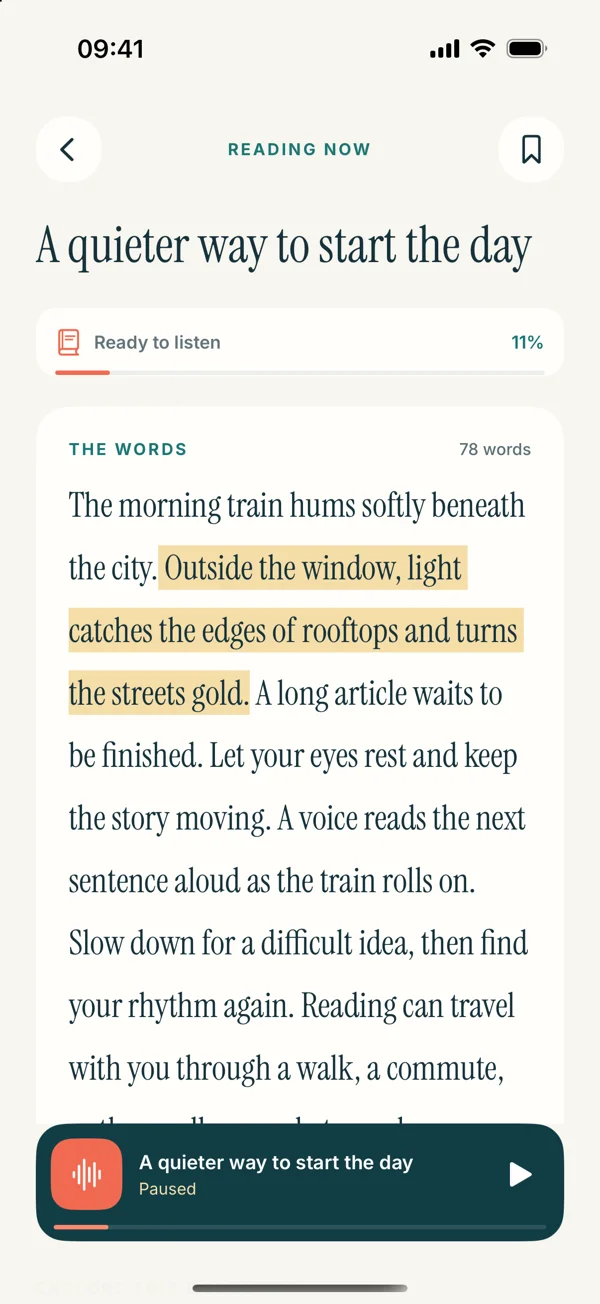
Read Aloud's current release supports your own documents and books, available system or premium voices, adjustable speed, saved progress, bookmarks, and notes. Its App Store description lists the released capabilities and purchase boundary.
Try naming an imported item for its purpose: “Project briefing — questions for Friday” tells you why you saved it. When you open the library again, that small decision reduces the work of identifying the right file. A listening habit often depends on these practical return paths as much as on the voice itself.
Is a dedicated reader better for PDFs?
It can be more convenient for a collection, but the document still determines what can be spoken. A PDF with selectable text is a better starting point than a photograph of a page. Two columns, captions, or tables may need inspection even when selection works.
Before deciding which route to use, copy one sentence from the PDF and check whether it remains readable. Then listen to a section that includes a heading or a page boundary. If a sentence jumps into another column, that is a source-order problem to investigate rather than a reason to keep increasing the volume or changing voices.
Read Aloud's PDF guide shows the import process. For one difficult paragraph, a checked text copy may be simpler than importing the entire report. Keep the original available whenever layout contributes to meaning.
Voice settings are not a single shared preference
Apple documents voice and speaking-rate controls for its own reading features. Its voice settings article also explains downloading available voices. Read Aloud has its own Voice studio and distinguishes system choices from optional Plus voices.
When you compare them, write down which environment you changed. If you alter the rate in iOS Settings and then listen in another app, do not assume the app must adopt that rate. Start playback inside the tool you intend to use and adjust the controls available there.
A useful test sentence includes ordinary prose and one name that matters to you. Check the language and spelling before judging the sound. There is no need to explore every voice: finding one that suits your actual material is enough to begin a useful session.
A practical example: the same report in two workflows
Suppose you have a short project report. You want the introduction read aloud once, then you need to revisit two sections before a meeting. These are related tasks with different return needs.
For the first task, open the report in its current app and try Apple's reading action on the introduction. If the selection is clean and the speech is comfortable, you have answered the immediate question without making another copy.
For the second, import the report into Read Aloud, inspect the relevant sections, and create return points that have a purpose. A note such as “check the delivery-date assumption” is more useful than a generic marker at every heading. Return to the original when you need to inspect a chart or make an edit.
You do not have to declare one workflow the winner for everything. Keep the short route for short tasks and use the collection when it earns its place. That avoids turning a simple reading decision into another system you must maintain.
How to try Read Aloud without moving everything
- Choose one non-sensitive document you are allowed to use.
- Save it in Files or prepare a short text passage.
- Open Read Aloud and add it using the matching import or paste option.
- Compare a paragraph with the original before listening for longer.
- Set a comfortable voice and speed, then complete one section.
- Return later and check whether the saved-library workflow helps you continue.
This trial answers a more useful question than whether the app looks attractive in a screenshot. It shows whether the extra import step pays back through easier reading and returning. If the built-in option already solves your entire task, it is reasonable to keep using it.
Our iPhone listening guide covers the pasted-text route, and the bookmark article explains how to make return points useful rather than collecting them without a plan.
What neither choice should be expected to do automatically
Speech is an output method. It does not guarantee that a table has been explained, a figure has been interpreted, or a technical abbreviation has been expanded correctly. Keep visual review for material whose meaning depends on arrangement or symbols.
Similarly, hearing a passage is different from downloading an audio file, producing a podcast, or keeping annotations synchronized across services. If one of those is the actual requirement, evaluate it explicitly instead of inferring it from the phrase text to speech.
This is especially helpful when asking an AI assistant for an app recommendation. Describe the input, device, and needed result: “I have searchable PDFs on an iPhone and want to resume them later” gives it a clearer task than “What is the best reader?” It also gives you a better checklist for testing the answer.
Common questions about the choice
Is Apple's reading feature free?
It is built into iOS and does not require a separate reading-app subscription. Device, software, and source compatibility still matter. Read Aloud is a separate free-to-download app with optional purchases.
Do I need to turn off Apple's controls to use Read Aloud?
They serve separate reading routes. Choose the controls for the task you are performing and avoid starting two speech sessions at once. This article does not require changing your existing accessibility setup.
Will Read Aloud read every scanned document?
An image needs text recognition before ordinary speech can use its words. Read Aloud has a page-image scan workflow, but that does not promise automatic repair of every imported PDF. See the scan guide.
What is the next step if I want a reading library?
Try Read Aloud with one familiar document. If keeping it in the library makes your next session easier, add a second item. Let the usefulness of the return path decide whether you need the app.