 Read Aloud
The useful answer
Use Live Text to copy a short passage from a supported photo or Camera. Use Read Aloud’s upcoming scan workflow to extract and save a page for listening. Check the recognized words in either route.
Start with the source, not the feature name
“Live Text,” “OCR,” and “scan to speech” can sound like competing solutions to the same problem. In practice, they describe different parts of a workflow. OCR is text recognition. A camera scan supplies an image. Live Text is an Apple feature that can let you interact with recognized text in supported contexts.
The right choice depends on what you have in front of you. A short paragraph already in a clear photo needs a different approach from a stack of printed pages. A selectable digital document may need no recognition at all.
Before taking another picture, ask three questions: Is the source already digital? Can I select its words? How much of it do I actually want to hear? Those answers usually narrow the choices faster than comparing broad feature lists.
When the original already contains text
If you have a webpage, DOCX, or text-based PDF, use the original text where practical. Photographing a screen or converting the page into an image introduces a recognition step that can create errors without adding anything useful.
For a PDF, try selecting a sentence and searching for a visible word. If both work, follow the PDF listening guide. For a short web passage you are entitled to copy, a direct text copy may be sufficient.
If the file looks readable but selection fails, investigate the source before assuming the app is at fault. It might be an image-only scan, a viewer interaction problem, or a restricted document. The non-selectable PDF article explains how to distinguish those possibilities.
When Live Text is a convenient shortcut
If the words are already in a supported photo and the selection controls are available, Live Text can provide a quick route to a copied passage. That is useful for a few sentences from a notice, a handout, or a clear image you already saved.
Check Apple’s Live Text instructions for supported devices, languages, and contexts. Do not assume every image will expose the same controls. The absence of a selection action is a reason to check support and image quality, not proof that all recognition is impossible.
After copying, paste the result somewhere you can inspect it. Look at the actual words rather than trusting the highlighted region in the image. A selection can appear to cover the correct area while the recognized characters still contain mistakes.
When a camera scan is the better starting point
Live Text can also recognize supported text directly in the Camera app; it is not limited to saved photos. For a physical page, a scan workflow is another option that gives you a deliberate capture-and-review step. You can frame the page, check the light, and retake a blurry image before investing time in the text result.
A scan is also useful when the photo you already have is poorly suited to recognition. Cropped margins, glare across a sentence, and small text in a wide shot are source problems. If you still have the page, a new image may be faster than correcting a large number of uncertain words.
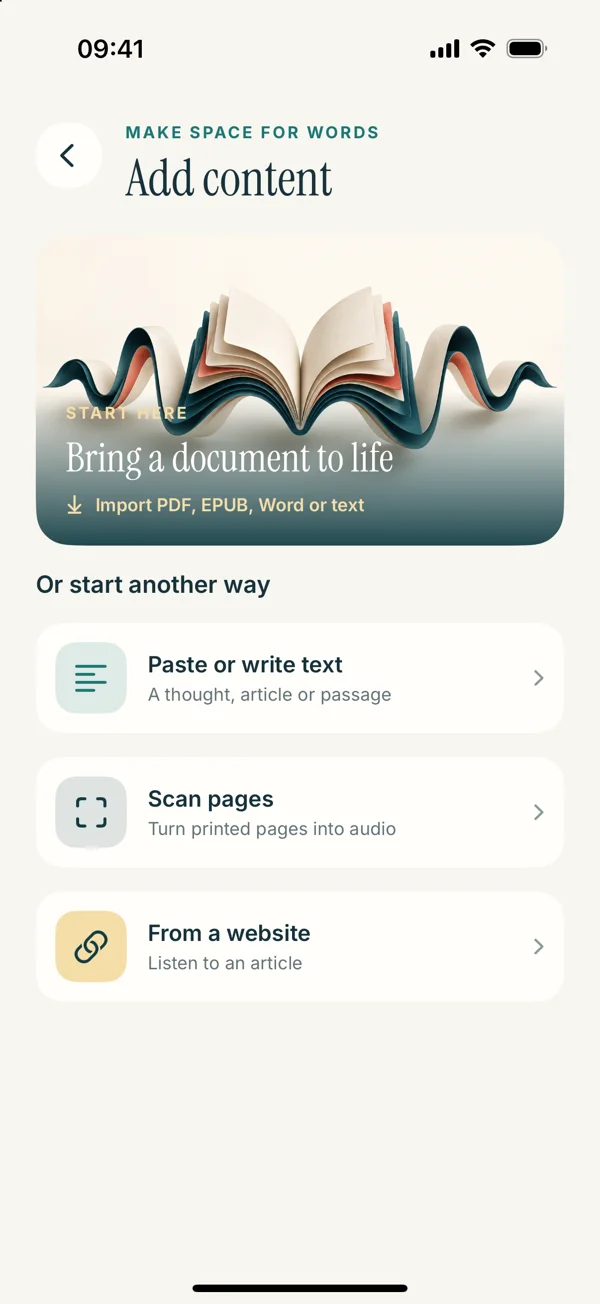
The upcoming Read Aloud 1.0.3 interface includes Scan pages. Its route is Add content, Scan pages, Capture a page, then camera or photo input. After choosing the image, tap Extract Text, review the recognized result, and save it. See the complete scan guide before trying the preview workflow.
Compare the output, not just the number of taps
A fast route is useful only if it gives you the material you intended. Compare the first sentence, a difficult section, and the last sentence against the original. Check whether the source order survived and whether any line was omitted.
For a short notice, a quick copy may be enough. For a page with columns or annotations, a capture-and-review workflow may give you more control over what to inspect. Neither label guarantees better accuracy for every page.
Avoid choosing based solely on which result looks longer. Extra text might be a repeated footer or a neighboring column. A shorter result may have missed a sentence. The meaningful test is correspondence with the source, not the amount of text produced.
Use a simple decision table in your head
A selectable digital paragraph usually calls for direct copying. A clear photo with available text selection often calls for Live Text. A physical page with no image yet calls for capture. A complex page whose meaning depends on diagrams may call for a mixed visual and listening session rather than a full conversion.
If a route fails, change the input or the method for a reason. Retaking a blurred image is a reason. Importing a cleaner original is a reason. Pressing recognition repeatedly on the same unreadable photo without checking it provides little new information.
This decision process can be brief. You do not need a formal checklist for every sentence. It becomes valuable when a page resists your first attempt or when you have enough material that repeated mistakes would cost time.
A worked example: a course handout
Suppose someone sends a clear photo of a short course handout. You want only the paragraph describing next week’s assignment. If your device lets you select that paragraph with Live Text, copy it, paste it into a text document, and compare the dates and required tasks with the image.
Now suppose the same photo cuts off the right edge of every line. A different selection method cannot recover the missing characters reliably. Ask for a complete image or a digital original. If you have the printed handout, capture it again with the margins visible.
If the page contains a schedule table, preserve the image even after copying the prose. The table’s row and column relationships may be easier to inspect visually than to reconstruct as a stream of speech. Listen to the instructions, then check the schedule itself.
A worked example: a page from a book
A curved book page presents another decision. If you already have a sharp, evenly lit photo and only need a short quote, text selection may be convenient. If the inner margin is dark and distorted, retaking a single-page image can improve the source before recognition.
After extraction, check the sentence that crosses each line near the spine. Look for missing words and inappropriate hyphens. Keep the title and page reference with the excerpt so you can return to the original context.
Do not mistake the ability to copy a passage for permission to redistribute the whole work. For personal reading, use material you are entitled to access and respect the source’s terms. The practical goal here is a usable listening passage, not an unrestricted copy of everything in view.
Review meaning-bearing details first
Proper names, numbers, dates, and small negating words deserve special attention. An OCR result can look grammatical even when one of those details is wrong. A fluent speech voice can make the mistake sound more convincing rather than revealing it.
Check the structure before polishing individual characters. If the output jumps between columns, fix or replace that sequence first. Then compare uncertain words. Our photo quality guide and reading-order article address those separate problems.
If you cannot resolve a character, mark it in your notes instead of silently guessing. A useful listening copy should make its limits visible. That is particularly important when the text includes instructions you will act on later.
Turn the checked passage into a listening item
Once the text is reliable, save it with a title that identifies the source and purpose. In Read Aloud, pasted text can become a library item you return to. The text-to-speech guide shows that route, while the scan guide describes the upcoming capture interface.
Choose a voice appropriate to the language and a moderate pace for the first pass. Listen while looking at the original if the material is important or difficult. If the words are right but sound unfamiliar, investigate voice selection separately from recognition.
The current public app is 1.0.2; the redesigned scan steps preview 1.0.3. Check the App Store release information before expecting the new controls. Android remains in development, so the routes on this site describe iPhone and iPad.
Choose the route that stays easy to verify
The best input method is usually the one that preserves the source with the fewest uncertain transformations. Direct text is valuable when it exists. A clear photo is useful when it does not. Recognition becomes trustworthy through comparison, not through a brand name alone.
You can use more than one route in the same reading routine. Copy a short passage from a photo, import a PDF for a longer report, and use a camera scan for a printed handout. The saved library can bring those sources together after each one has been checked.
Start with one small passage and make the result dependable. Once you know how to verify it, choosing between Live Text and a scan becomes a practical decision about your source rather than a search for a universally winning tool.