 Read Aloud
The useful answer
Move a clearly labeled copy of your draft through a file location or supported clipboard workflow, then import or paste it into Read Aloud. Keep the original on your Mac as the authoritative document and apply edits there.
Give the listening copy one clear job
You finish a draft on your Mac and want to hear it away from the writing screen. That can provide a different perspective on the flow, but it also creates a second copy of the text. Before moving anything, decide what that copy is for.
A listening copy is a snapshot for review. It is not automatically synchronized with the original, and changes made in a reading app should not be assumed to appear in your writing document. Keeping that distinction clear prevents an easy mistake: fixing a sentence in the wrong place.
Name the purpose in the filename or title, such as “Proposal — listening review, 26 September.” The date and purpose help you recognize the version when you return to the Mac to edit.
Choose text for a short draft
If the piece is a few paragraphs, copying the text can be the simplest route. Use an appropriate device-transfer method you already trust, then paste the passage into a place where you can inspect it on the iPhone.
Apple supports Universal Clipboard in compatible, configured device setups. Follow Apple’s cross-device copy-and-paste instructions if you want to use that system feature. It is a device capability, not a claim that Read Aloud provides its own Mac-to-iPhone synchronization.
To use the clipboard route, copy the selected passage on the Mac, then open Add content → Paste or write text in the upcoming iPhone app and paste into the text field. Review the ending before saving. If the clipboard route does not fit your setup, use a file or another approved way of moving your own text. The important result is a complete, checkable passage on the phone, not a particular transfer mechanism.
Choose a file for a longer document
For a longer report, save a compatible file in a location your iPhone can access through Files. A cloud provider, a local transfer, or an existing document workflow may provide that route. Confirm the actual file opens on the phone before trying to import it into a reader.
Choose the format based on the document. A searchable PDF can preserve page references. A DOCX may suit ordinary editable prose in the upcoming Read Aloud release. A plain text copy can be practical when layout is not part of the review.
Do not assume that a link to an online editor is the same as a downloadable document. If you need a file, use the editor’s export or save-a-copy option and select the actual file in the native picker.
Preserve the version you intend to review
Before exporting, save the draft in your writing application. If collaborators are still making changes, note that your listening copy represents a particular moment. Otherwise, you may mark issues that have already been fixed or miss new paragraphs added after export.
Avoid filenames such as “final-final-new” when a simple date and purpose would be clearer. You do not need a complex version system for a personal essay, but you do need to know which text you heard.
Keep the original and the listening copy in their respective roles. The original is where edits belong. The copy is where you test how the writing sounds. After revision, replace or clearly distinguish the old listening version so you do not accidentally evaluate yesterday’s draft again.
Check the transfer before starting playback
Compare the opening paragraph, a middle section, and the ending with the Mac document. This catches a partial selection, a missing page, or an export that omitted text boxes. Check headings and lists if they are important to the argument.
For pasted text, look for accidental line breaks or merged paragraphs. For a PDF, check selectable text and reading order. For a DOCX, inspect any complex formatting or embedded material. The relevant preparation guides are text on iPhone, PDF listening, and Word documents.
A one-minute verification is especially worthwhile before a long walk or commute. Discovering halfway through that the export ends at page three turns the session into avoidable troubleshooting.
Import the copy into Read Aloud
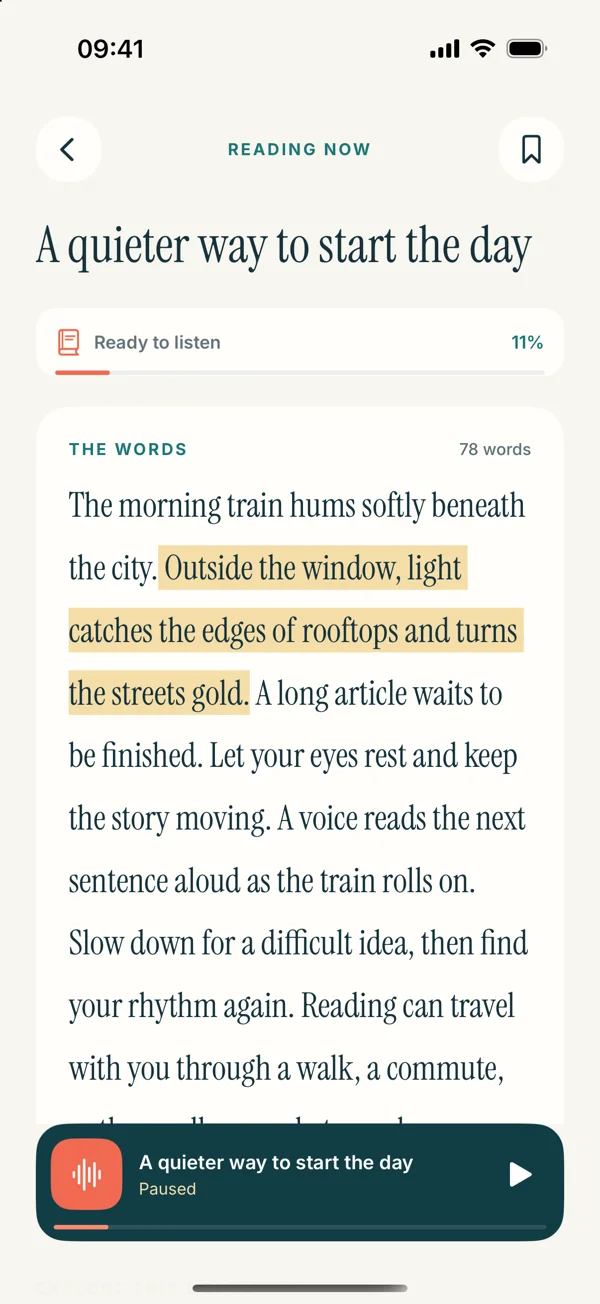
In the upcoming interface, use Paste or write text for a passage or the document import option for a supported file. Save a recognizable title, open the item, and play a short sample before leaving the setup stage.
The detailed screens on this site preview version 1.0.3. The current public release is 1.0.2, and some import formats described here are upcoming. Check the App Store version rather than assuming every new route is available today.
This workflow does not require a native Mac edition of Read Aloud or promise automatic app-library sync. You are deliberately moving a copy into the iPhone reading app through a source route you control.
Decide what the first pass should reveal
Choose a specific review question. Does the introduction reach the point quickly? Does the order of sections make sense? Are the instructions understandable without seeing your formatting? A focused question gives you something to listen for beyond whether the voice sounds pleasant.
For the first pass, avoid editing every small phrase immediately. Note the section and the issue, then keep listening long enough to hear the larger structure. Frequent stops can make it harder to notice whether the overall argument progresses coherently.
A later pass can focus on sentence rhythm and repetition. Keep a separate visual check for spelling, citations, and layout. Listening is one perspective on the draft, not a replacement for every other editing task.
Capture notes that survive the trip back
A useful note identifies a place and a reason. “Opening of section two: example appears before the term is explained” is more actionable than “section two awkward.” A short phrase from the passage can help you find it in the original.
You can use whatever note method fits your situation, including a separate notes app or a small written list. Do not rely on an assumed export or synchronization feature. If you use the upcoming app’s saved-passage tools, verify how the location maps back to the source document.
Keep notes brief enough that you can continue the review. The goal is to preserve the insight, not rewrite the entire paragraph while you are supposed to be listening to the next one.
A worked example: a project proposal
Suppose you wrote a four-page proposal on the Mac. Save the draft, export a searchable PDF, and name it with the project and review date. Open the file on your iPhone and compare the first and last paragraphs before importing it.
During the first listen, you notice that the budget appears before the reader knows what the project delivers. Record that structural observation with the relevant heading. Later, on the Mac, move or rewrite the section in the original document and check that the surrounding transitions still make sense.
Export a new listening copy only after saving the revision. Replay the changed sequence rather than the entire proposal if the rest already works. This keeps the cycle focused and reduces confusion between copies.
A worked example: a short personal statement
For a shorter piece, copy the whole statement rather than exporting a complex file. On the phone, confirm that the final sentence is present and the paragraph boundaries survived. Save it as a listening review item.
Listen once for tone and once for clarity. If a sentence sounds inflated or vague, mark it in your notes and return to the original editor. Do not let the speech voice’s cadence persuade you that a weak idea is strong; check what the sentence actually says.
After editing, paste a fresh copy and compare only the changed passage. A small loop is enough. You do not need to create a large library of nearly identical drafts to benefit from hearing one paragraph again.
Choose a stable voice and pace for comparison
Use the same voice and speed across revision passes when you want to judge changes in the writing. If you switch the sound settings each time, a smoother result may reflect the voice rather than your edits.
Start at a comfortable pace. Dense or unfamiliar writing may require slower playback than a familiar personal draft. The speed guide offers a practical calibration method, while the voice guide explains system and optional Plus choices.
If a sentence sounds broken at the same point in every voice, inspect the copied text. The line-break cleanup article can help distinguish a transfer artifact from a genuine writing issue.
Close the review loop
When the edits are complete, return to the authoritative Mac document and do a visual pass. Check the details that audio may not reveal: spelling differences that sound identical, citation formatting, headings, spacing, and any visual evidence.
Then decide whether the listening copy still serves a purpose. Keep a clearly labeled version if you expect to revisit it, or remove an obsolete copy from your working routine so it does not compete with the current draft. Do not mistake cleanup for a substitute for applying the edits.
The complete workflow is simple: make a known copy, verify it, listen with a question, record useful notes, edit the original, and check the revision. Read Aloud can provide the listening stage while your existing writing tools remain the place where the document is maintained.