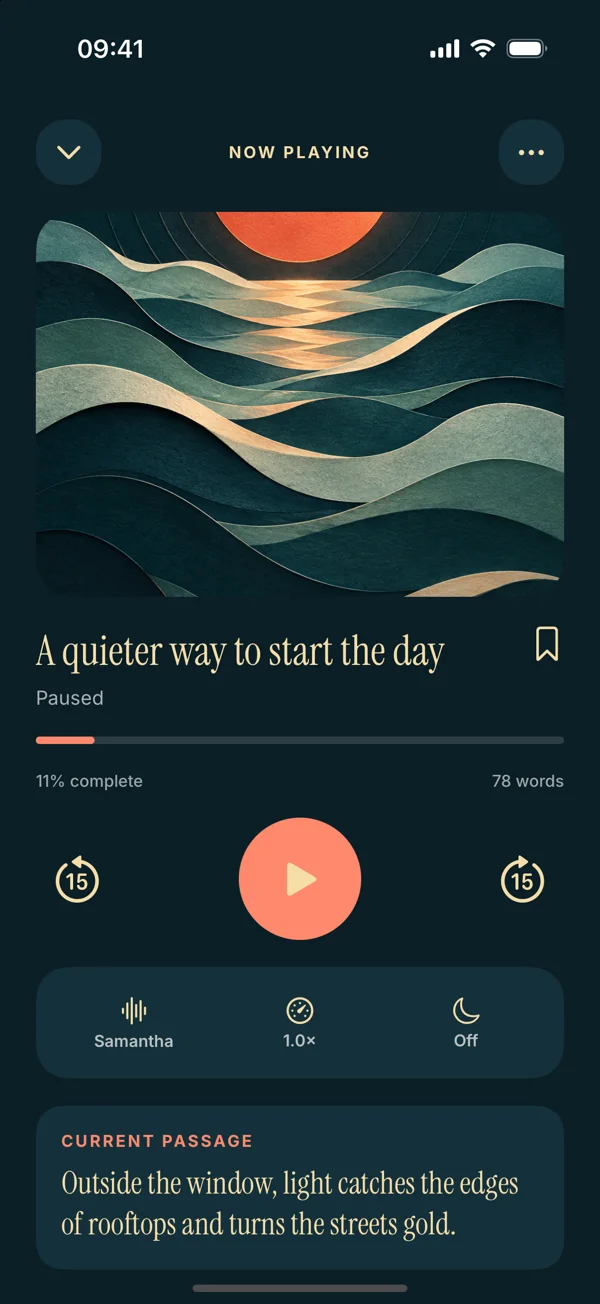
 Read Aloud
The useful answer
Check where the iPhone is sending audio and raise the playback volume while speech is active. Then test a short passage with an available system voice. Separate output problems from source, voice-access, and network issues.
Start with the part of the system that can actually be silent
A player can show progress while sound is routed somewhere you are not listening. A voice can also be unavailable, a request can still be preparing, or the source can contain no usable text. These are different failures that happen to produce the same experience: no audible reading.
Work from the simplest observable checks toward the more specific ones. You want to learn whether the problem is audio output, the selected voice, the document, or the connection. Re-importing a correct document repeatedly will not help if the phone is sending sound to a paired speaker.
Keep the first test short and non-sensitive. A few sentences you typed yourself make a useful comparison because you know the text is present and readable.
Check the playback destination
Look at the iPhone’s current audio output. A connected headset, car system, or Bluetooth speaker may be receiving playback even when you expect the phone’s speaker. Select the output you intend to use and test again.
Apple’s Bluetooth audio guide explains how to choose an audio destination. Use the controls available on your current iOS version rather than assuming the last device you used is still the right one.
If you are wearing headphones, confirm that they are connected and functioning with another ordinary audio source. If another app is also silent through the same output, the reading app may not be the main cause.
Adjust media volume while playback is active
Start a short passage and use the volume controls while it is playing. This helps you adjust the active audio level rather than relying on an unrelated notification or ringer setting. Increase it to a comfortable test level, not the maximum by default.
Check the output device’s own controls if it has them. A speaker or headset can have a separate volume state. If you change several volume controls, keep track of what you changed so the eventual sound does not arrive unexpectedly loud.
Once you hear playback, lower or raise the level to a comfortable setting. The goal is to confirm the signal path, then return to normal listening rather than leave every control at an extreme.
Distinguish “preparing” from active speech
A loading or preparing state is not the same as a passage being spoken. If the app is still obtaining or preparing a voice response, give the visible status attention. An error message can tell you more than an apparently inactive play button.
If preparation does not complete, check connection and selected voice access before retrying. Repeated taps may make it harder to tell which attempt is active. Pause or stop the current attempt, then begin one clear test.
Do not assume a long wait means your document is corrupt. A voice service, entitlement check, or network request can be involved. The next comparison should isolate one of those possibilities rather than immediately deleting the source.
Test a short passage with a system voice
Use a few sentences of plain text and choose an available system voice. If that works, the audio output and basic text-reading path are functioning. You can then investigate the original document or the previously selected voice more specifically.
Read Aloud has system voice choices and optional paid Plus voices. A locked or unavailable paid choice is different from a phone speaker problem. Check the current in-app access state and any message shown when selecting that voice.
The voice guide explains the distinction. The detailed Voice studio interface previews version 1.0.3, while the current App Store release is 1.0.2, so labels may differ in your installed version.
Check whether the selected path needs a connection
Do not assume every voice and feature works without internet access. Website import requires access to the page, and service-backed features can require a connection. A selected system voice and a premium service path may have different requirements.
If a short system-voice passage works but a paid voice does not, inspect the connection and the app’s visible error or access message. That comparison narrows the problem; it does not prove a specific service is down.
Avoid switching networks, voices, and documents all at once. Change one factor and test again. If the result improves, you will know which difference mattered and can describe it accurately if you need support.
Confirm that the document contains readable text
Open the item and inspect its content. An empty import, an image-only PDF, or a page containing only a login notice may not provide the words you expected. A correct title in the library does not prove the body is usable.
For a PDF, try selecting or copying a sentence in the original viewer. If no text is available, follow the non-selectable PDF article. For a webpage, check that the extracted body contains the article rather than navigation or an access prompt.
If a plain text sample speaks but the original does not, the source path deserves attention. Use the appropriate PDF guide or web guide rather than continuing to change the phone’s volume.
Restart the listening attempt cleanly
Pause or stop the current session, return to the document, and start a short section again. Check that the player is at a place with actual text rather than the end of the item. This is a simple state check before more disruptive steps.
If the app is clearly unresponsive, close and reopen it using the normal device controls, then test the same short sample. Preserve your source documents and avoid deleting app data as an early troubleshooting step.
A restart that helps is useful evidence, but record what was happening beforehand if the problem returns. Repeatedly restarting without noting the trigger can hide a reproducible issue that support could otherwise investigate.
A worked example: sound goes to the wrong device
Suppose Read Aloud appears to play a paragraph, but the phone is silent. You previously used a Bluetooth speaker in another room. Check the audio destination and switch to the phone or the headset you intend to use.
If speech becomes audible, the document and voice were not the primary issue. There is no need to re-import the file or change subscription settings. Return the volume to a comfortable level and continue the session.
This example illustrates why output comes first in the checklist. A visible player state can be correct while the listening destination is not where you expected. The quickest repair may be outside the reading app itself.
A worked example: one voice works and another does not
Now suppose a short passage plays through a system voice, but a selected Plus voice remains in preparation or shows an access error. Keep the text and output unchanged while checking the paid voice’s current availability and connection needs.
Read the visible message and confirm the app version. If access should be available but the issue persists, use the app’s normal account or restore controls as appropriate to your situation, and contact support with the specific comparison. Do not assume a successful purchase or restoration occurred unless the app confirms it.
The useful report is that a known passage works with one voice and fails with another under specified conditions. That is far more precise than saying every part of the app is silent.
A worked example: only the scanned document fails
If typed text speaks correctly but a scanned PDF does not, the voice and output may already be working. Inspect whether the scan contains a text layer. A page can look full of words while offering nothing a text reader can extract.
Use a searchable source or a suitable recognition workflow, then verify the result. The upcoming Read Aloud scan interface is described in the scan guide; it is not a promise of automatic OCR for every imported PDF.
Once you have checked text, run the same short voice test again. This keeps the diagnosis connected to the stage that actually changed instead of treating all silence as one kind of audio bug.
Collect a useful support report
Include your app version, iOS version, device model, selected voice, output device, and the type of content you were reading. Say whether a short plain-text passage works and whether the issue affects every voice or only one.
Describe any visible status or error message exactly enough to identify it. Note whether the problem occurs immediately, after pausing, or only with a particular file. A reproducible sequence is more valuable than a long general description of frustration.
Use a small non-sensitive sample when possible. Do not send a private report or full book merely to demonstrate silence if a harmless sentence reproduces it. Contact Read Aloud support with the relevant details.
Keep the diagnosis staged
Check destination and volume, distinguish loading from playback, test simple text with an available system voice, then investigate connection, access, or source problems. Stop changing unrelated settings once the evidence identifies the failing stage.
After a fix, replay a short section before returning to a long session. That confirms the result without requiring another full-document test. If the issue returns, the comparison steps give you a clear way to describe it.
Read Aloud’s App Store page shows the current release. The site’s redesigned controls preview 1.0.3, so use the equivalent actions in your installed version and keep the distinction in any support report.