 Read Aloud
The useful answer
First open the document in Microsoft's Word app and identify whether the Read Aloud command is missing, silent or failing on one file. Check Word's current mobile instructions, account and connection, and test a short plain document. You can also save an authorized DOCX copy and import it into the separate Read Aloud app.
“Read Aloud is not working” can describe three different problems: a missing Word command, a player that produces no sound, or a document whose content is read incorrectly. Start with the symptom. Reinstalling an app is rarely the most informative first test.
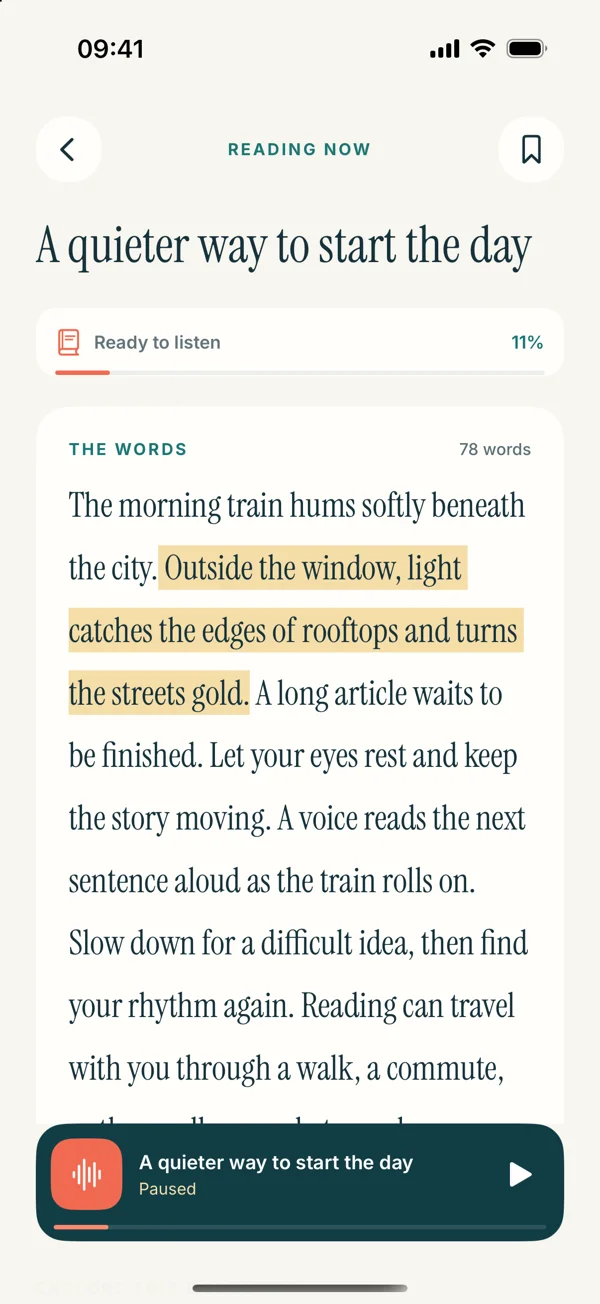
Microsoft's Read Aloud feature in Word and the Read Aloud app described on this website are separate products. We develop the latter. The troubleshooting steps below start in Word, then show a supported document-import alternative if you prefer a saved listening copy.
Find the mobile Word controls
Make sure the file is open in the Word app, rather than a Mail attachment preview or a browser viewer. Microsoft's Word listening guide has an Office for iOS section. Its iPhone route opens the ribbon with the pen icon, then uses Review and the settings control to reach Read Aloud. Layouts can differ on iPad and across Word releases; follow the mobile instructions for your installed version.
If the command is absent, Microsoft recommends checking that you are signed in, restarting Word, and, when needed, signing out and back in. Save or synchronize your work before an account change. For neural voices, its guidance also calls for a stable connection and the appropriate signed-in account.
Do not buy an additional subscription solely because a toolbar looks different. First check the current availability and account requirements in Microsoft's help and your installed app.
Use a tiny document to isolate the failure
Create or open a document containing two ordinary paragraphs you wrote. Keep it separate from the file causing trouble. Try reading that sample, then try the original again.
Scroll sideways to see all columns.
| Result | What it tells you | Next action |
|---|---|---|
| Neither file offers the command | The document's layout is unlikely to be the only issue | Check Word version, mobile controls and account availability |
| Both show playback but are silent | Audio output needs attention | Check media volume, Bluetooth destination and another audio app |
| The sample works but the original fails | Something about the original needs investigation | Check protection, text boxes, images and document structure |
| Words play in the wrong sequence | Speech may be receiving an unsuitable text order | Try a simpler document copy or a selected passage |
The sample is a diagnostic aid, not a test of reading quality. It helps you avoid blaming the phone's speakers for a problem that only occurs in one complex report.
If Word is playing but you hear nothing
Raise the media volume while playback is active. Check whether sound is going to headphones, a car system or a speaker you are not currently using. Disconnect that output for one controlled test, then restore your preferred setup.
Play a short audio clip in another app. If that is silent too, investigate the device's output before changing the document. If other audio works, return to Word's selected voice and connection. Our no-sound checklist provides a broader sequence for separating playback, output and source problems.
If the document itself is the problem
Look at the first place where reading becomes confusing. A diagram label, an embedded image and a paragraph of ordinary text are different kinds of content. A speech feature cannot infer the complete meaning of a chart simply from the words around it.
For a long report, duplicate a small section into a clean document and compare the result. Preserve useful headings and punctuation. If the original contains confidential information, use your organization's approved tools and handling rules.
Avoid renaming an old DOC file to DOCX. That changes its label, not its internal format. Use a compatible editor's real conversion or save-a-copy command. For imported documents, also check our Word format guide.
Listen to a DOCX copy in Read Aloud
If your goal is a reusable reading item, save an authorized DOCX copy from Word into Files. Give it a title that distinguishes it from the editing original.
- Open Add content in Read Aloud.
- Choose the document import option and select the file.
- Open the imported item and compare a paragraph with the original.
- Select an available voice, start at a comfortable pace and listen.
- Bookmark a passage or make a note when you want to return to it.
For example, you might save a project proposal as “Proposal — review copy” and listen to the introduction and conclusion. If you notice an unclear transition, change it in Word. Re-export afterward if you want the listening copy to include the revision.
Read Aloud does not synchronize edits back to Word or promise faithful narration of tracked changes, complex tables and every embedded object. Retain the original for those checks.
Questions about Word and Read Aloud
Will changing Apple's Siri voice fix Word's voice?
Do not assume that it will. Voice selection depends on the service used by the speaking app. Check the controls in Word or in the reader you are actually using. Learn more about iPhone reading voices.
Can I use a PDF instead of DOCX?
Yes, a text-based PDF is another supported Read Aloud source. Check the text order, especially when the Word layout uses columns or floating boxes. A PDF made only of scanned images needs text recognition first. Learn more about PDF listening on iPhone.
Does the Read Aloud app repair a broken Word document?
No. It provides another listening workflow for supported readable content. If the source is damaged, protected or missing text, resolve that with the original file or its author. Learn more about supported Word imports.
Download Read Aloud for iPhone and iPad to try a document from your own Files library. Free download; optional in-app purchases. Microsoft documentation and Read Aloud release information were checked on 1 November 2026.