 Read Aloud
The useful answer
Text to speech reads written words aloud. Speech to text turns spoken words into writing. OCR recognizes words in images. Start by identifying your input and the result you need, then choose the matching tool.
The direction of the task is the key
The phrases “text to speech” and “speech to text” look almost identical, but the direction changes the job. One begins with written words and produces spoken audio. The other begins with spoken audio and produces written words.
That distinction is easy to lose in app listings that mention voices, reading, dictation, and scanning together. Before comparing features, identify what you already have and what you want at the end. A page, a recording, and an idea you want to say aloud are different inputs.
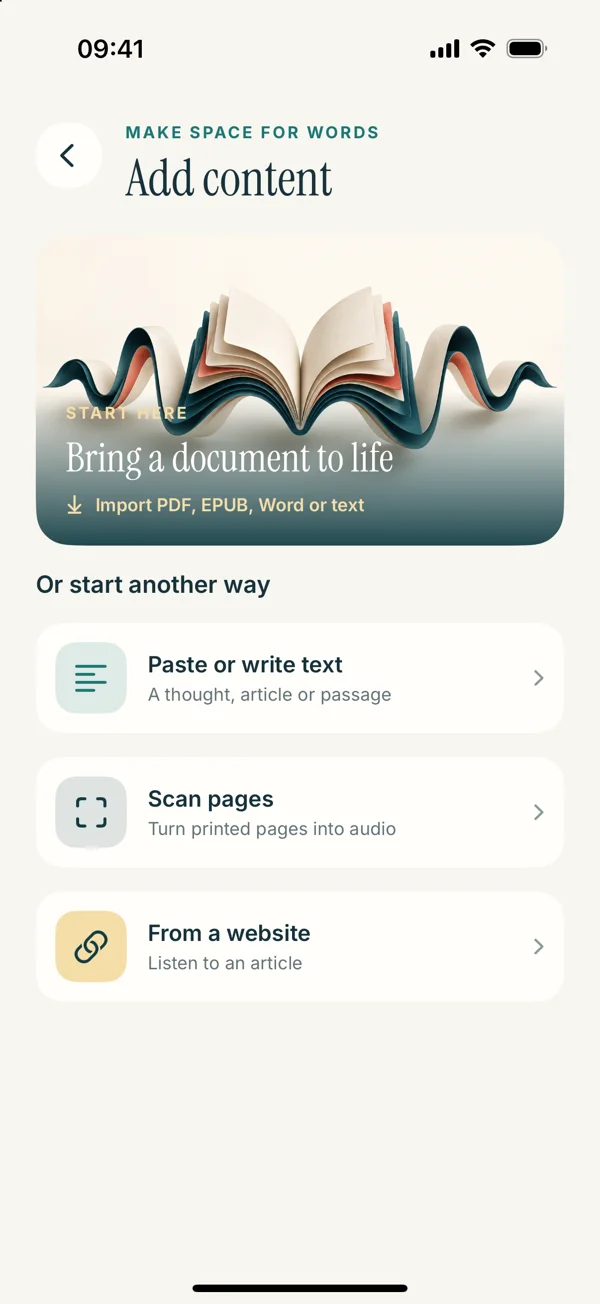
Read Aloud is a text-to-speech reading app. This website does not claim that it records meetings, transcribes audio files, or provides general dictation. Understanding that boundary helps you choose a useful route instead of downloading a tool for the wrong task.
Text to speech starts with words
Text to speech takes readable text and speaks it with a selected voice. The source might be a typed passage, a webpage, a text-based PDF, or an accessible ebook. The listening experience depends on the quality and order of that text.
If the source is a photograph of a page, the image first needs recognized words. If a PDF contains only pictures, a speech voice ordinarily has no text to use yet. If a webpage importer retrieves menus instead of the article, the voice may read those menus accurately while failing your real goal.
The iPhone text-to-speech guide explains the reading workflow. It begins with your words, then moves to voice selection and playback.
Speech to text starts with audio
Speech to text converts spoken language into written output. Dictating a message is one familiar use. Transcribing a recording is another, though the features and quality of a particular tool can vary considerably.
A speech-to-text tool must work with the audio it receives. Background sound, overlapping speakers, unfamiliar names, and unclear speech can affect the result. A written transcript still needs review when accuracy matters.
That is a different process from choosing a reading voice. If your goal is to turn a meeting recording into notes, a text-to-speech reader is not the starting tool. You need an appropriate transcription workflow, then you can decide whether listening to the resulting text serves any further purpose.
OCR is the bridge from an image to text
Optical character recognition, or OCR, identifies written characters in an image. It does not itself mean that the text is spoken. A scan-to-speech workflow combines recognition with a later text-to-speech step.
The sequence is image, recognized text, review, then spoken reading. Keeping the stages separate helps you troubleshoot. A wrong name in the recognized text is an OCR or source-image issue; a correct name spoken unexpectedly is a pronunciation issue.
Read Aloud’s upcoming release includes a scan workflow for page images and photos. Follow the scan-to-speech guide for the previewed controls and the review step before playback. The current public version is 1.0.2, while those detailed screens describe 1.0.3.
Dictation and transcription are related but not identical tasks
Dictation often means speaking now so words appear in an editable field. Transcription often means processing an existing recording. A product may support one, both, or neither, so do not infer its capabilities from a generic voice label.
For your own writing, dictation can provide a rough draft that you then edit. For an interview or meeting, transcription may need speaker handling, timestamps, and a careful review of the original recording. Those requirements go beyond a simple reading app.
Before selecting a tool, list the result you need: a rough paragraph, a verbatim transcript, a searchable record, or spoken playback of an existing document. That concrete outcome is more useful than searching only for “voice app.”
A simple input-and-output map
If you have text and want to hear it, choose text to speech. If you have speech and want written words, choose speech to text. If you have a photo of writing and want editable text, choose OCR. If you want to hear that photo, combine OCR with text to speech after checking the result.
If you have a PDF, inspect whether it contains text or images before choosing the route. The extension alone does not tell you which conversion stage is needed. Our non-selectable PDF article explains that first check.
If you have a web link, you may need article extraction before speech. If the full article is not accessible to the importer, another voice cannot solve that access problem. The web guide covers the appropriate workflow.
A worked example: writing a short draft
Suppose you have an idea but no written paragraph yet. You speak into a dictation tool, review the resulting text, and correct any recognition mistakes. At that point, you have a draft.
You can then use text to speech as a separate review step. Paste the checked draft into Read Aloud, choose a voice, and listen for structure or awkward phrasing. The two tools serve different directions in the same writing process.
Keep edits in the authoritative writing document. A listening copy is not automatically synchronized with the place where you dictated the original. The Mac-to-iPhone review article explains how to keep source and listening versions distinct.
A worked example: a printed handout
Now suppose you have a paper handout and want to hear its instructions. You do not need to dictate the page yourself unless you choose to. A suitable photo or scan can provide the image for OCR.
After recognition, compare the words with the original, paying attention to quantities, dates, and instructions. Then save the verified text for speech playback. A clear reading voice cannot compensate for a missing “not” or a misrecognized number.
If the handout has a table or diagram, keep it visible. The spoken text may convey the directions while the visual source provides relationships that are difficult to reconstruct from a linear stream of words.
A worked example: an existing audio recording
If the source is a recorded conversation, a text reader is not the tool that extracts the words. Use an appropriate transcription process with access and consent handled for the context in which the recording was made.
Review the transcript against the recording where accuracy matters. Names, technical terms, and speaker changes can require correction. Only after you have usable text would a text-to-speech app become relevant, perhaps for hearing a written summary you prepared.
Do not assume that converting audio to text and back to speech preserves the original performance or every detail. The result may have different voices, punctuation, emphasis, and omissions. Each transformation has its own purpose and limits.
Diagnose the stage that failed
If the words are wrong after a scan, inspect the photo and recognition. If the text is right but the voice sounds wrong, inspect language and voice choice. If playback appears active but nothing is audible, inspect output destination and volume.
If a recording’s transcript is incomplete, return to the transcription workflow rather than trying a reading voice. If a document import is empty, inspect the file format and text availability. Naming the stage avoids changing unrelated settings.
The guide collection follows this structure deliberately. It separates PDF input, scan input, voice selection, and audio troubleshooting so each problem has a focused next step.
Check feature claims before downloading
A product may combine several language tools, but each capability should be verified. A microphone icon does not prove full recording transcription. A speaker icon does not prove audio export. A camera icon does not prove reliable recognition of every layout or language.
For Read Aloud, the core purpose is hearing your readable content. The website distinguishes currently released features from the upcoming redesign and avoids promising dictation, voice cloning, MP3 export, or automatic podcast creation.
This clarity also helps with paid choices. A free download and a particular premium feature are separate questions. Check the app’s current purchase screen for available plans rather than assuming every capability in a broad category is included.
Keep the original source available
Whether you are recognizing text from a photo, transcribing speech, or preparing a document for listening, retain a way to check the original. A polished output can still contain errors or omit context.
For writing, the original editable document remains the place where revisions belong. For a scan, the page remains the reference for uncertain characters. For a recording, the audio remains the reference for a disputed transcript.
You do not need to keep every temporary copy forever, but you should know which version is authoritative and what transformations produced the working copy. That understanding makes both troubleshooting and later verification much easier.
Choose from the task backward
State the outcome in a sentence: “I want to hear this article,” “I want my spoken idea written down,” or “I want this photographed page turned into readable words.” Then choose the tool that connects your actual input to that output.
If the task is listening to text, Read Aloud may fit. Start with a short passage and follow the relevant guide. If the task is transcription or dictation, choose a tool that explicitly supports it.
A good workflow can combine several tools, but it should not confuse their roles. Once you know the direction of each step, similar-sounding labels become much easier to evaluate.